Data & State Management
The Data Concepts at a Glance
This widget is locked on the Free plan and available on the Pro and Enterprise plans.
In Lucy Studio, Data Management is a flow made up of the following concepts, in order:
- Data Provider - defines how to communicate with an external server
- Provider Instance - a named, runnable unit created to actually call that definition
- Data Set - a copy of a Provider Instance's response structure, holding data in memory
- Data Binding - the work of connecting that data to a widget property
Data Provider - Defining an External Data Connection
A Data Provider is a single external API (or real-time socket) connection, registered under a name. It's not the "calling" step yet — it just predefines which address to call, what values to send, and what values to expect back.
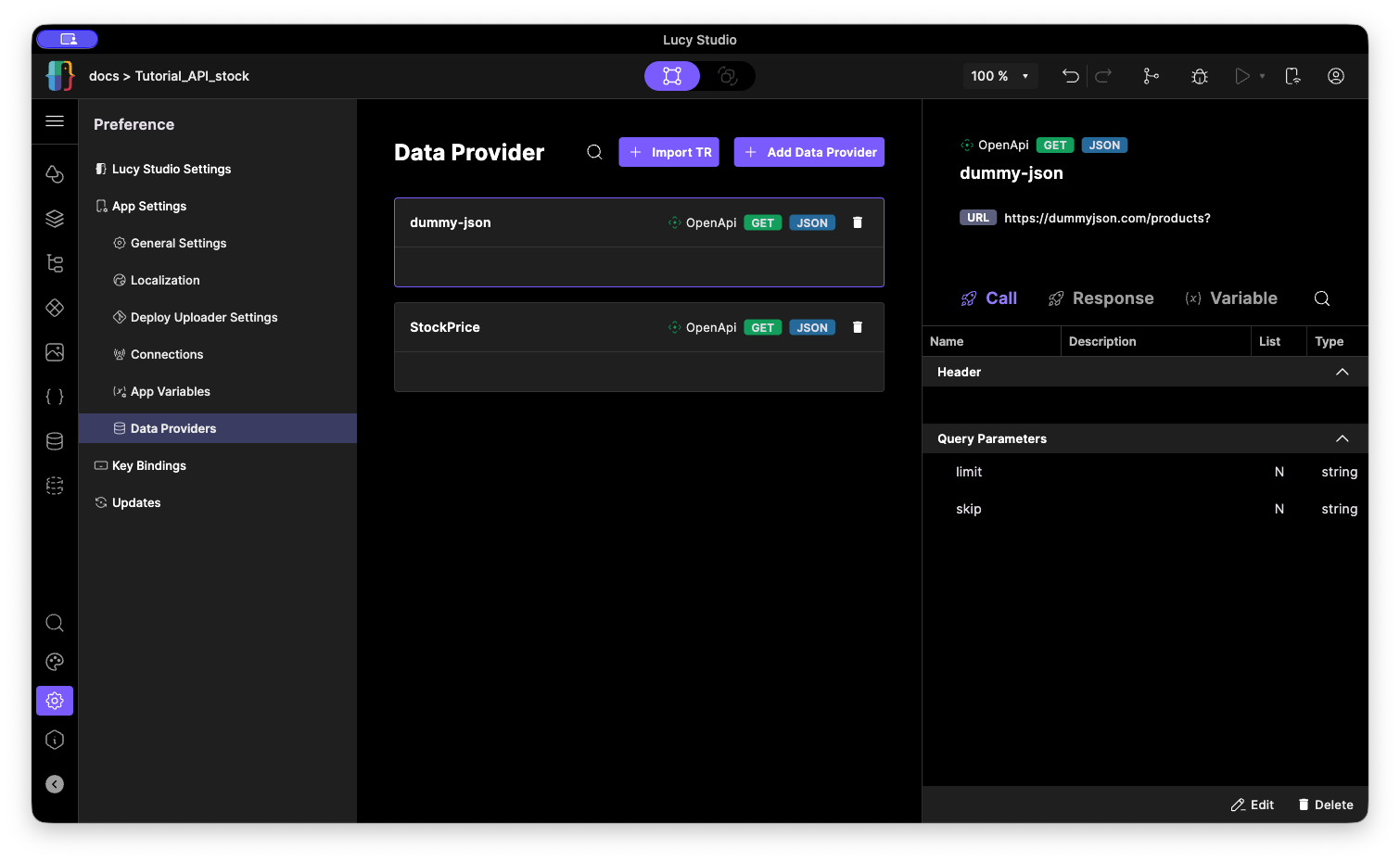
What you configure when creating a Data Provider:
- Name/Description: the name used to find this Provider from other screens
- Connection type: a regular API call, or a socket-style connection that keeps streaming data in real time
- Request format: the values sent to the server (which fields go in the header/query/body, whether each field is text/number/boolean/date, and whether it's a list)
- Response format: the values returned by the server, defined field by field the same way
Even for a complex response with many fields, once you define the Call / Response fields you can reuse that same structure anywhere else in your project.
Provider Instance - Actually Using a Provider
A Data Provider is only a "definition," so to actually request data from a screen you build a Provider Instance based on it. A Provider Instance fills in the actual values (parameters) to send to the Provider and gives them a name — a runnable unit that's "ready to call."
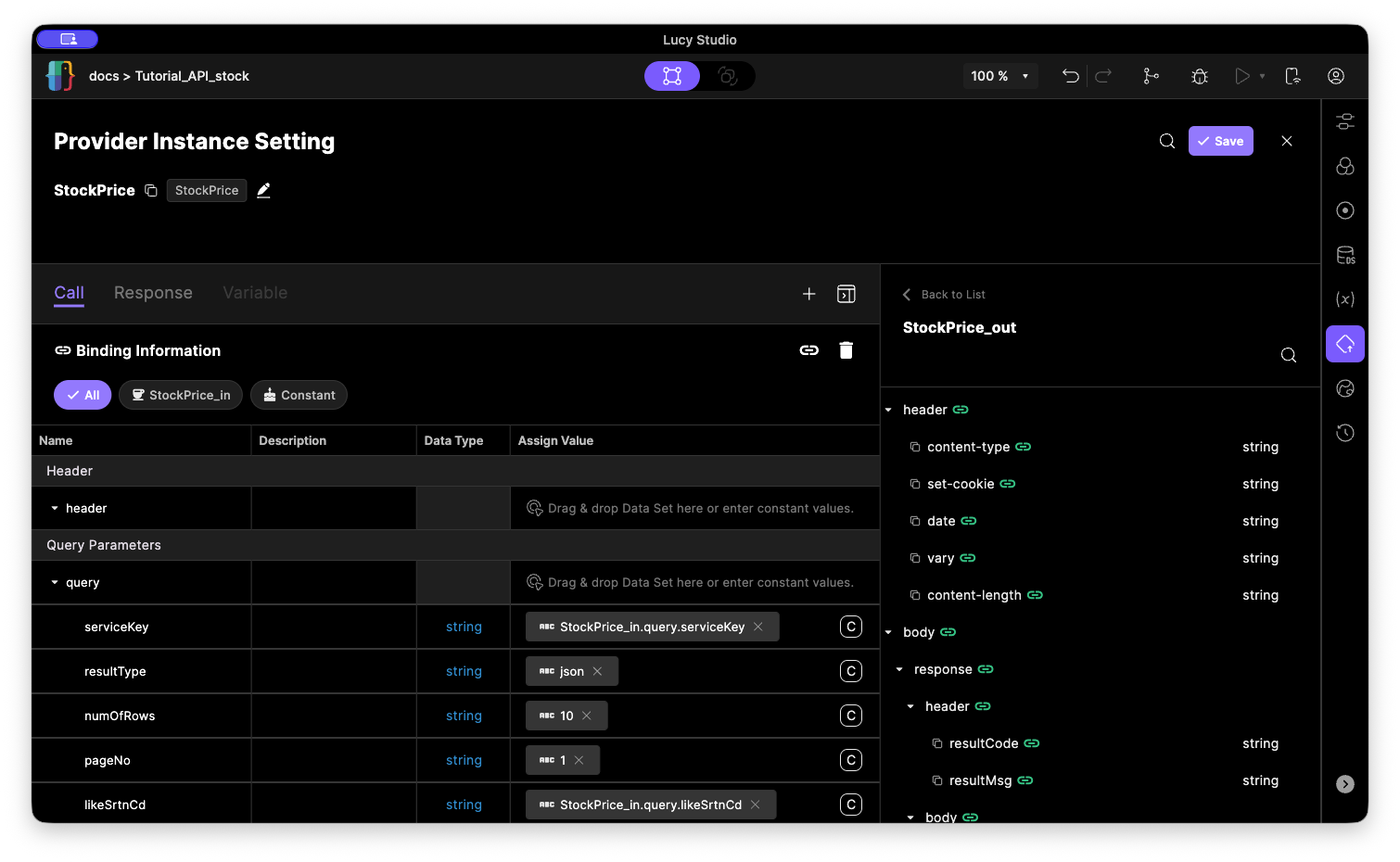
You can create several Provider Instances from the same single Data Provider, each with different parameters. For example, from one "stock quote lookup" Provider, you could create multiple Provider Instances that differ only in the stock code, so different parts of a screen can each look up a different stock.
When requesting data from a script, you use the Provider Instance's name, not the Provider's.
// Request data from the Provider Instance named "stockInfo"
$vm.requestData("stockInfo");
When the response comes back, any variables, Data Sets, or widgets connected to that Provider Instance update automatically, and you can also read or write Data Set values from a script.
Data Set - Defining a Data Set
A Data Set clones a specific Provider Instance's response structure so the data it receives can be held in memory for as long as the screen (form) is running. Rather than pointing at the Provider Instance itself, it copies the response structure at the moment it's created and keeps it independently.
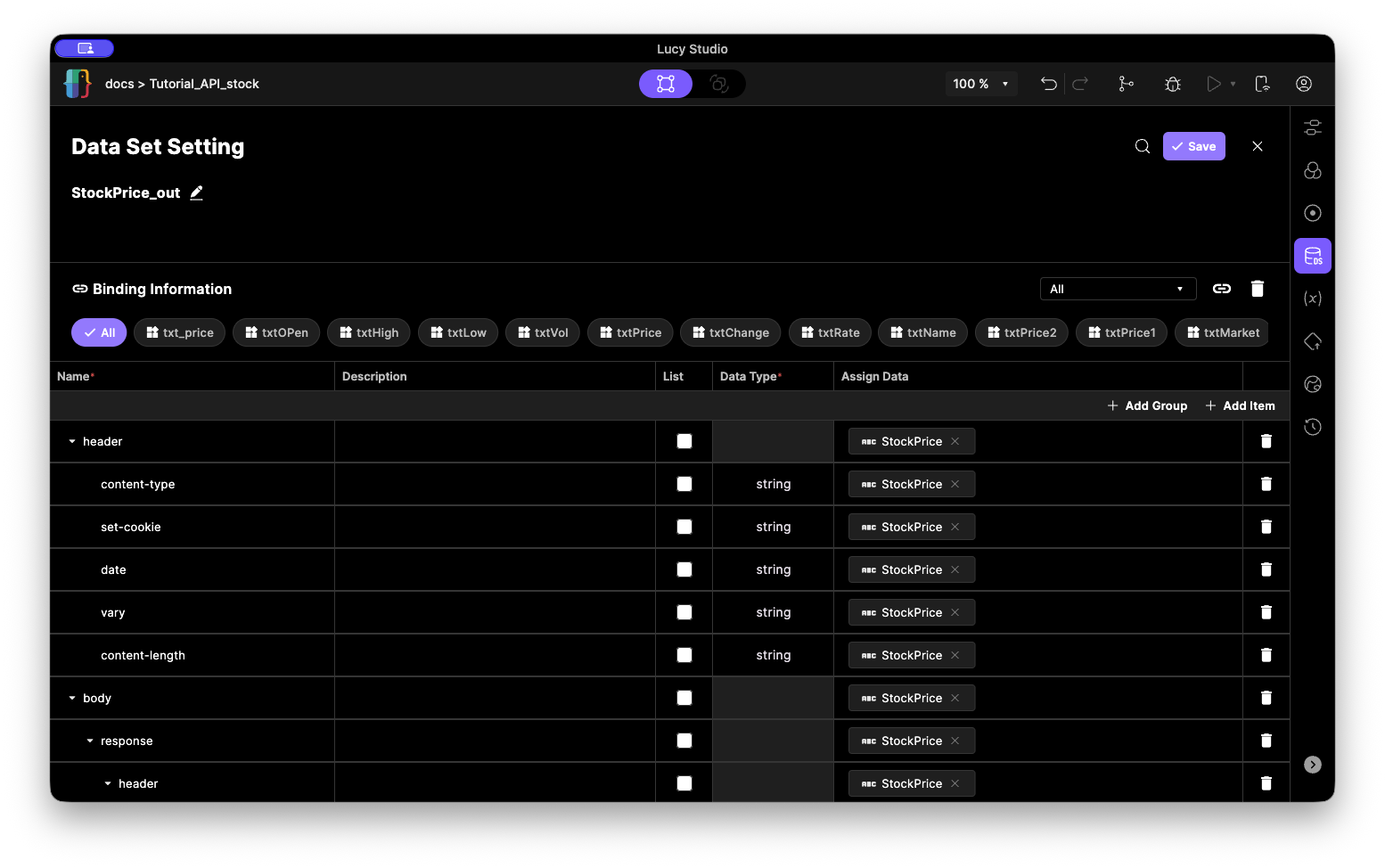
What you configure when creating a Data Set:
- Name/Description
- The Provider Instance it's based on - to pull in this Instance's request or response structure as the Data Set's shape, you first need to connect this Provider Instance to the Data Set. Once connected, every subsequent request through this Provider Instance automatically fills the response into this Data Set.
- Data Field configuration - after pulling in the Provider Instance's structure (or starting from an empty Data Set), you can freely add, remove, or edit the fields it actually holds.
A Data Set is a snapshot that says "build the screen against this structure, as of now" — so if the original Provider Instance's response structure changes later, the Data Set doesn't automatically follow along. If the structure changes, you'll need to update the Data Set to match.
Connecting Widget Properties (Binding)
Binding connects the value of a single widget property to a Data Set or a variable.
When you select a widget, the Property panel shows three tabs — Property / Event / Binding. Choosing the Binding tab lists the properties on this widget that can be bound.
You connect them by drag and drop. In the "Select Data Source and Variable" window, find the Data Set field or variable you want to connect, and drag it onto the property in the list to complete the connection.
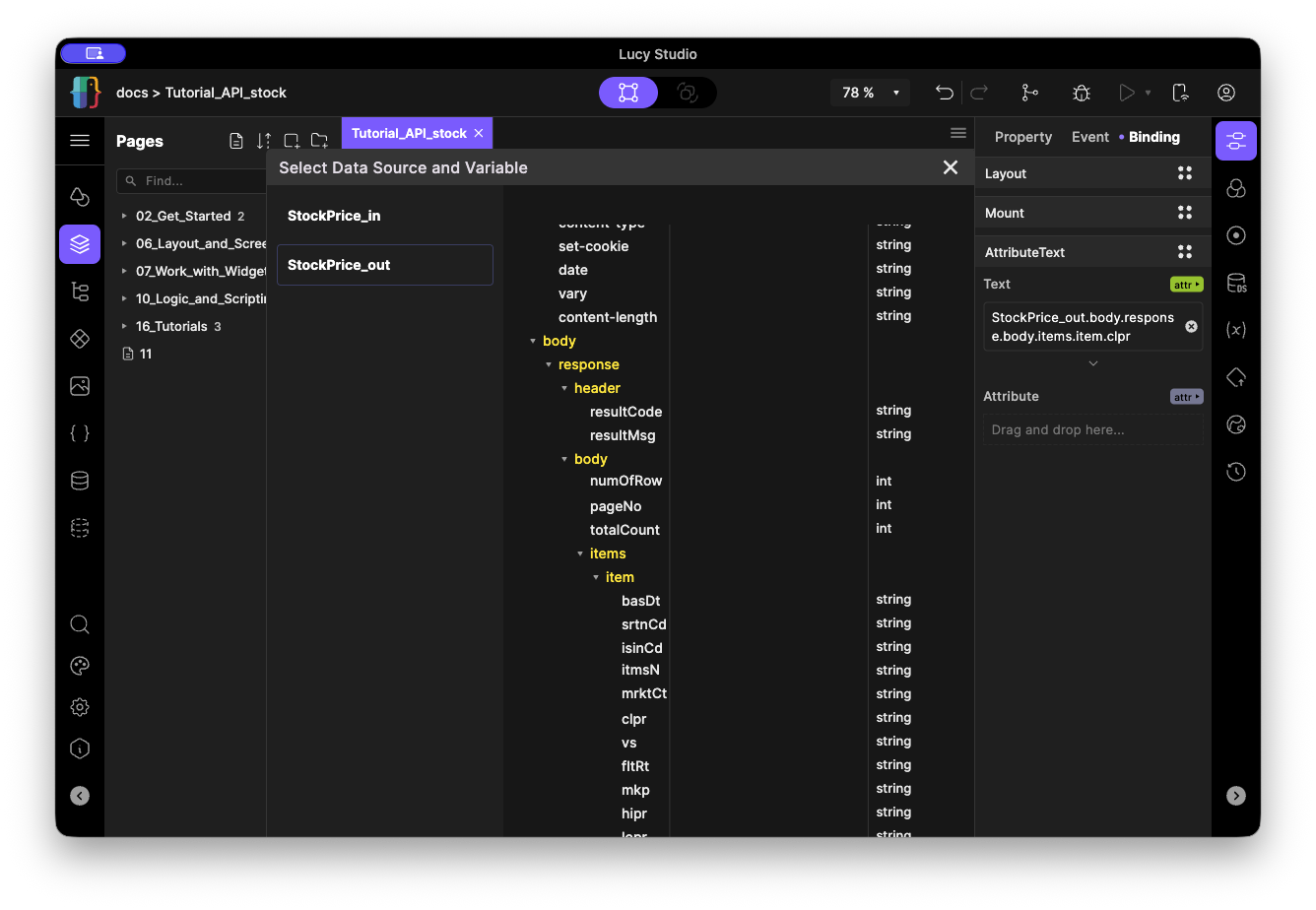
Beyond using a connected value as-is, you can also apply value-processing options such as a converter, digit rounding, regular expressions, or string Slice/Join.