Plate
Plate is the work area on the left side of the screen, where you manage your projects and components in an organized folder structure.
The left side is made up of the Tab Bar, where you choose a menu, and Plate, which holds the items for each menu.
Selecting a menu in the Tab Bar shows the matching Plate.
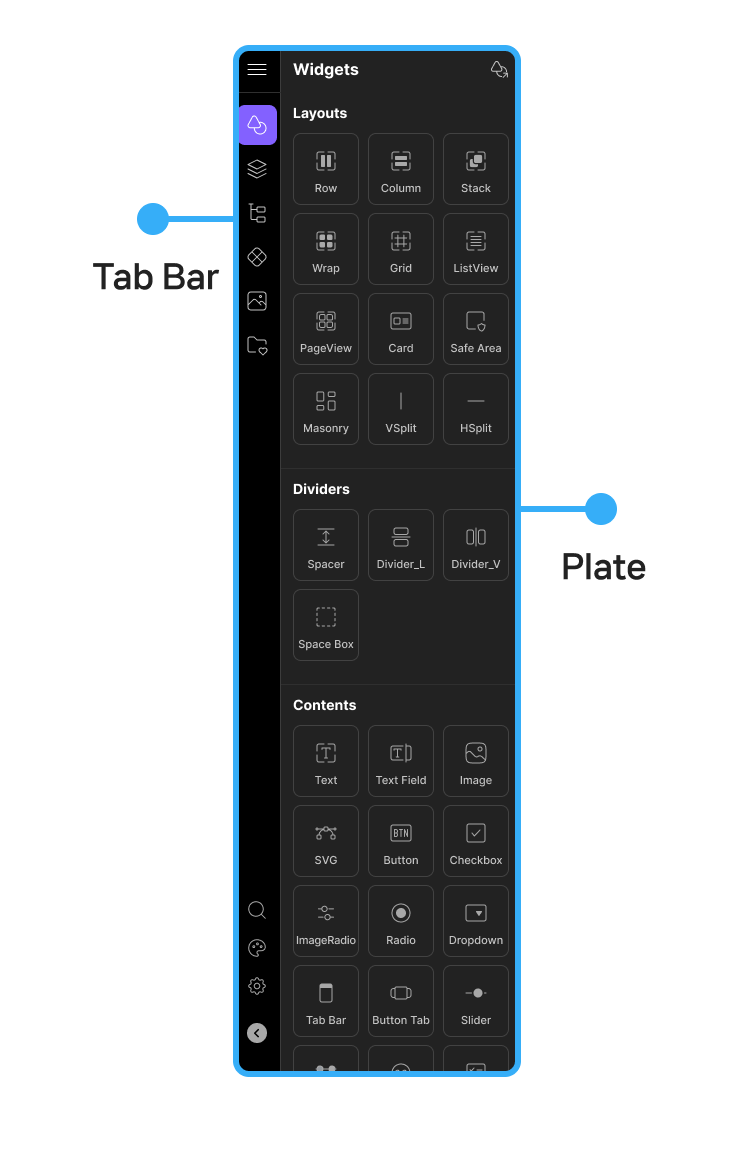
Plate Features
Plate provides a Menu Button, the Plate menu, Util Tools, and a Close Button.
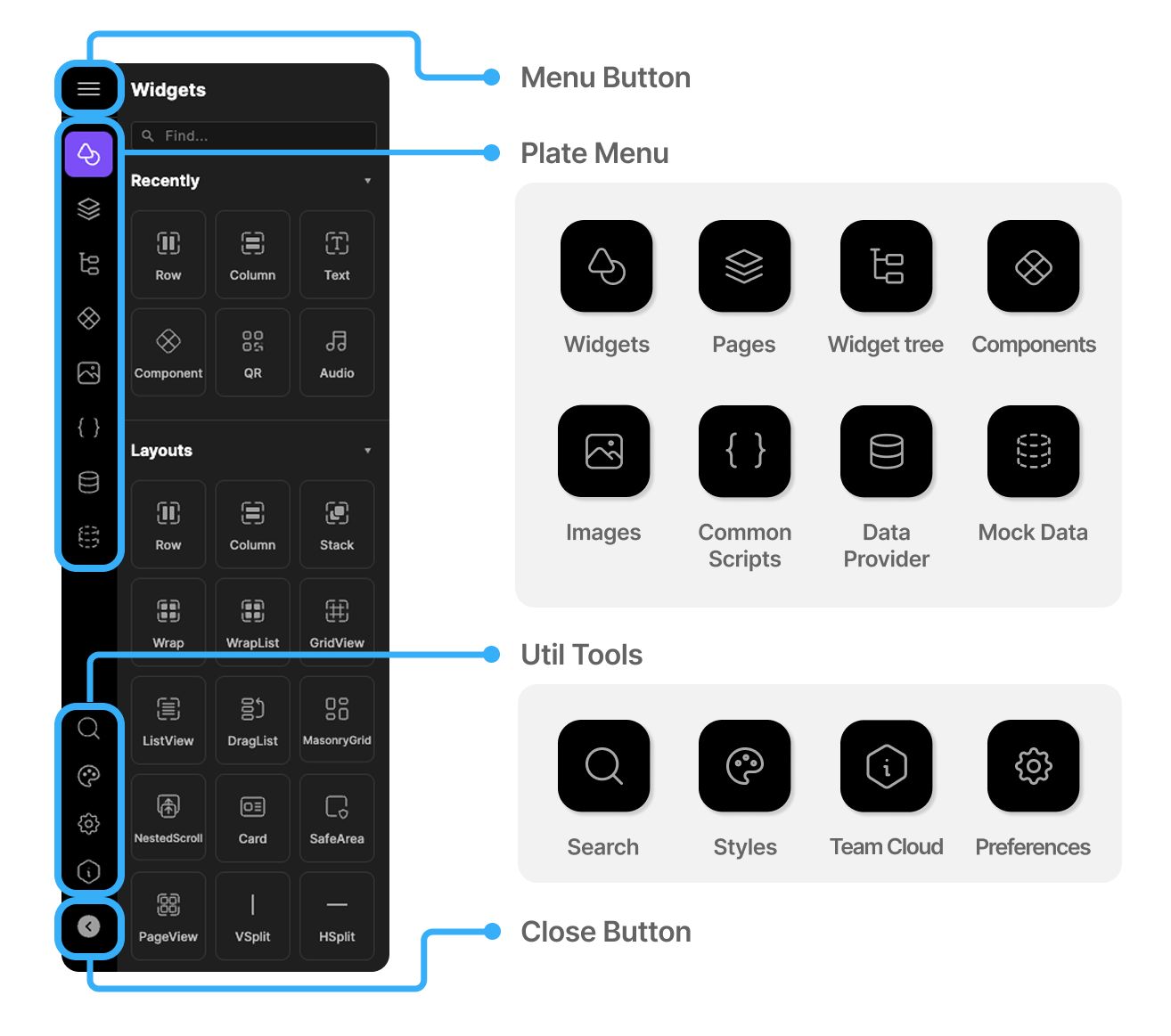
- Menu Button
- Click it to see the full menu window.
- Plate Menu
- The Plate menu manages the core resources you need for app development, organized as tabs.
- Widgets: Browse various kinds of widgets — Row, Column, Text Field, and more — and drag them onto Canvas to place them.
- Pages: Manage the full list of pages created in your project in a folder structure, and move between pages or create new ones.
- Widgets tree: Shows the hierarchical structure (tree) of the widgets currently placed on Canvas. Select or move widgets to visually understand complex layout structures.
- Components: Manage and view the list of reusable components you've saved for repeated use.
- Images: Manage the list of image files uploaded to your project, as thumbnails or a list.
- Templates: View a list of predefined templates and apply them to Canvas to quickly start an initial screen layout.
- Util Menu
- Sits at the bottom of the Tab Bar — utility tools for settings and search.
- Search: Search every element in your project — widgets, files, settings, and more.
- Styles: Manage styles applied across your whole project — font styles, colors, themes, and more — in one place.
- Preferences: Adjust Lucy Studio's app settings, such as auto-backup, recent project history, and preview program settings.
- Tab Bar Open/Close Button
- Click it to open or close the Plate area, expanding or shrinking Canvas's workspace.