First-Time Setup
Overview
This document walks users who've just created an account through the basic setup steps for launching LucyPlayer and LucyStudio for the first time.
It consists of two main steps: ① Sign in to LucyPlayer and ② Clone the tutorial project in LucyStudio.
Before you begin, make sure you've created your account — see Join Lucy Team Cloud.
Process Summary
- Step 1. Launch LucyPlayer and start signing in
- Step 2. Sign in from your browser (Sign in to Lucy Studio)
- Step 3. Return to LucyPlayer after signing in
- Step 4. Confirm the LucyPlayer connection
- Step 5. Clone the tutorial project in LucyStudio
Detailed Steps
Step 1. Launch LucyPlayer and Start Signing In
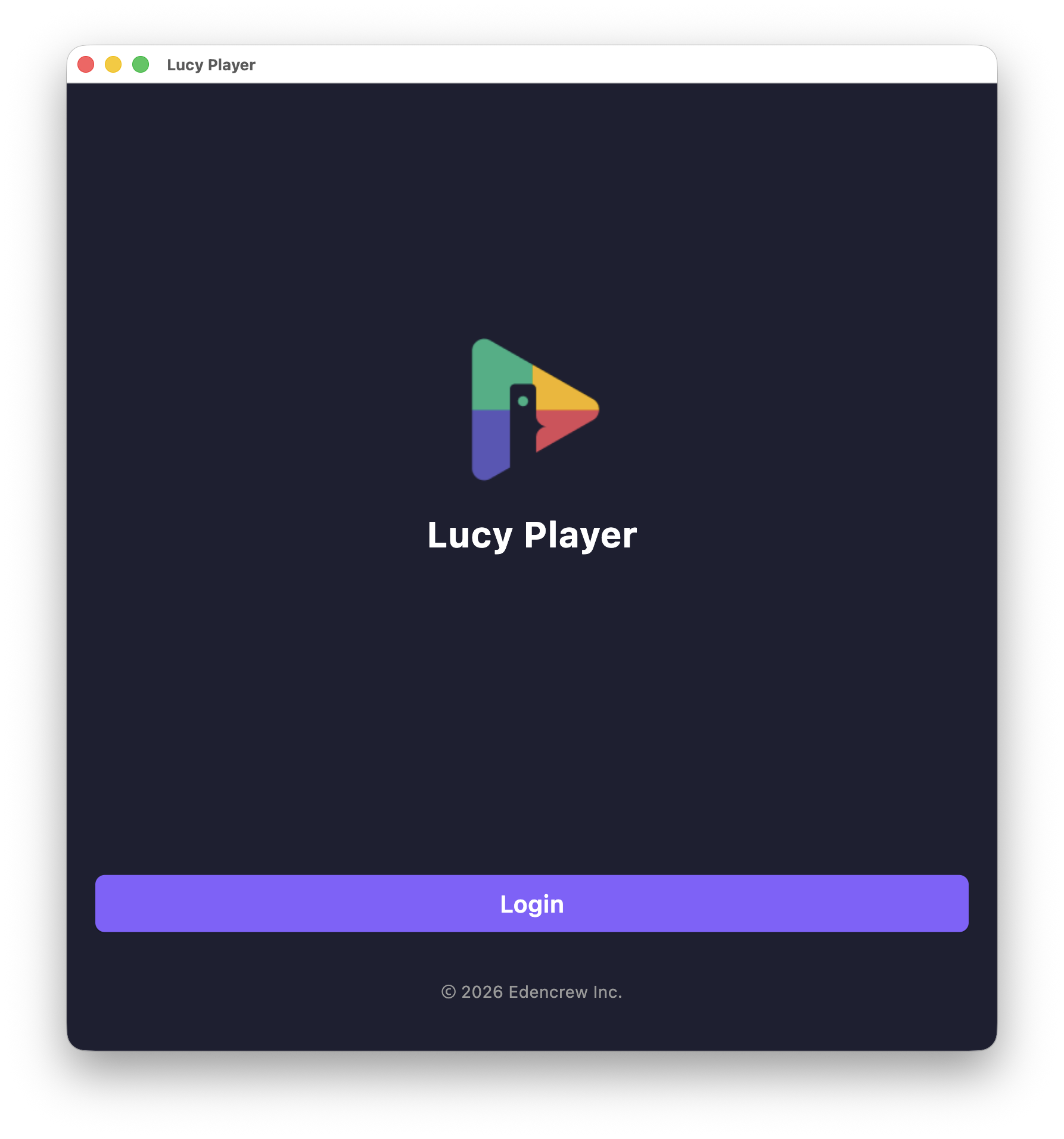
When you launch LucyPlayer, the initial screen appears. Click Login at the bottom of the screen.
Step 2. Sign In from Your Browser (Sign in to Lucy Studio)
Clicking Login opens your default browser to the "Sign in to Lucy Studio" page. Enter the email and password you used to create your account, then click Sign In. (You can also sign in with a Google or Apple account.)
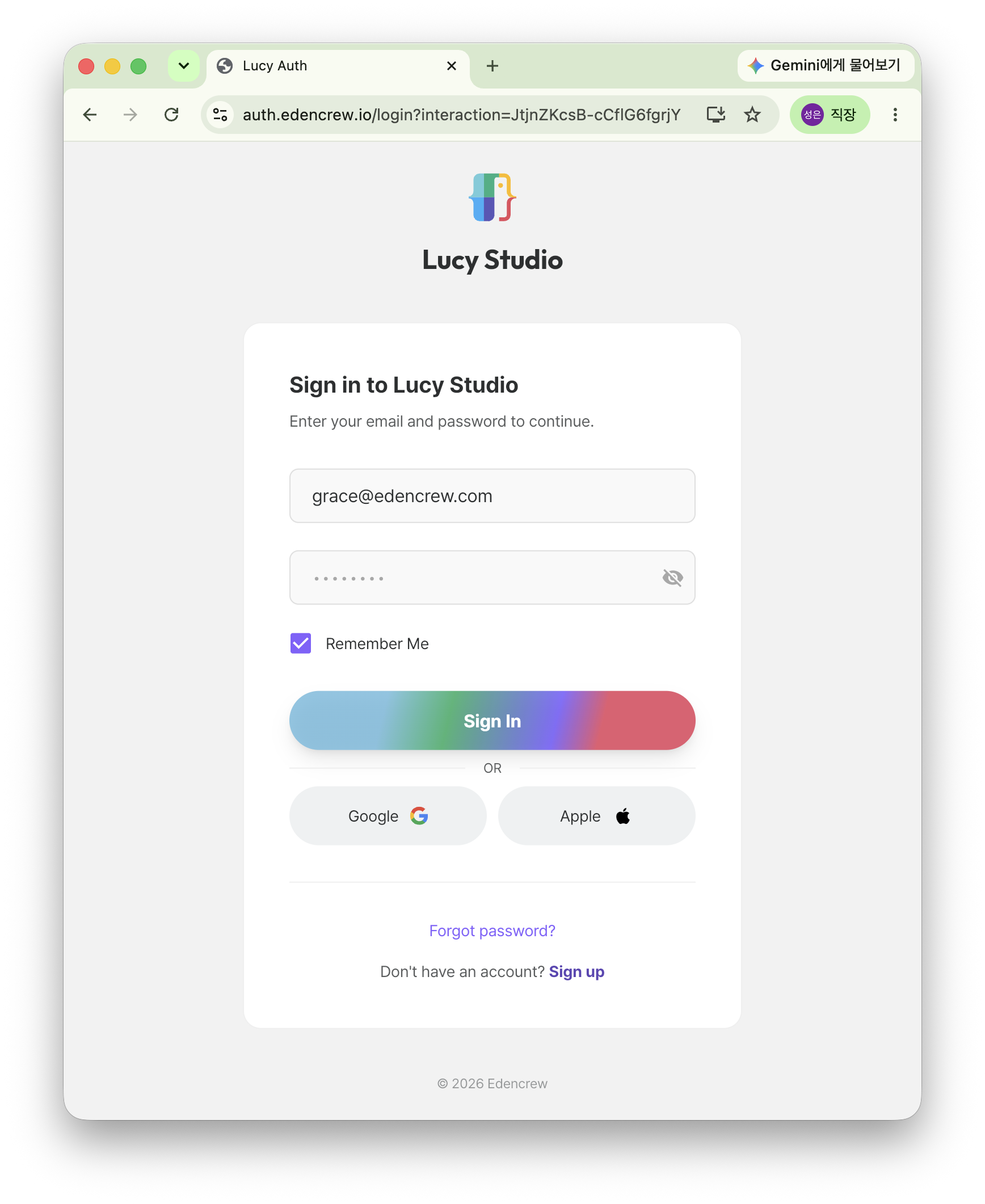
Check Remember Me to skip entering your email and password the next time you sign in.
Step 3. Return to LucyPlayer After Signing In
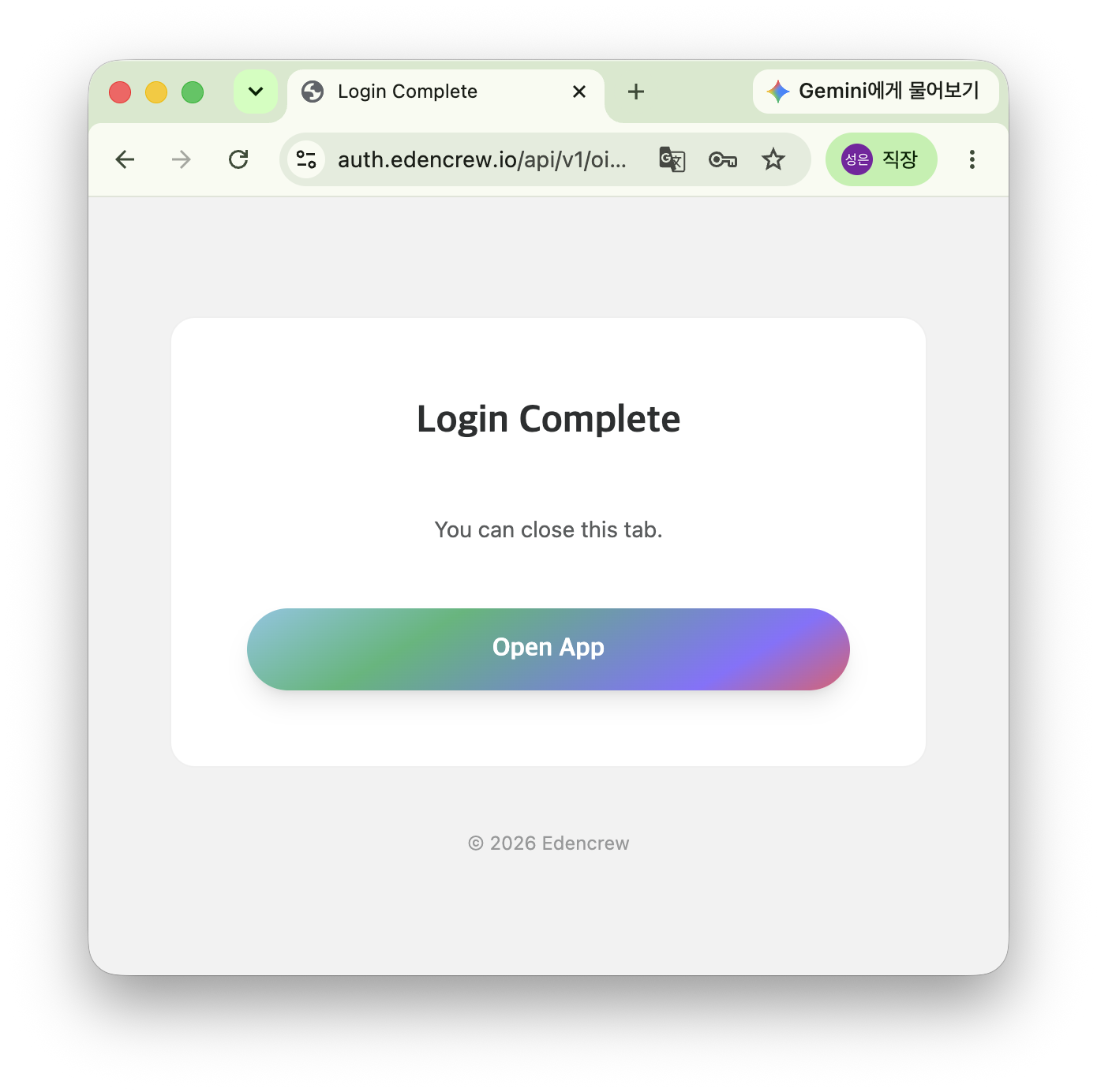
Once you sign in, you'll see the "Login Complete – You can close this tab." screen. Click Open App to return to the LucyPlayer app automatically.
Step 4. Confirm the LucyPlayer Connection
Back in LucyPlayer, you'll see the message "All systems go. Happy testing!" Once this screen appears, LucyPlayer sign-in and connection setup are complete. To disconnect, use Disconnect at the bottom.
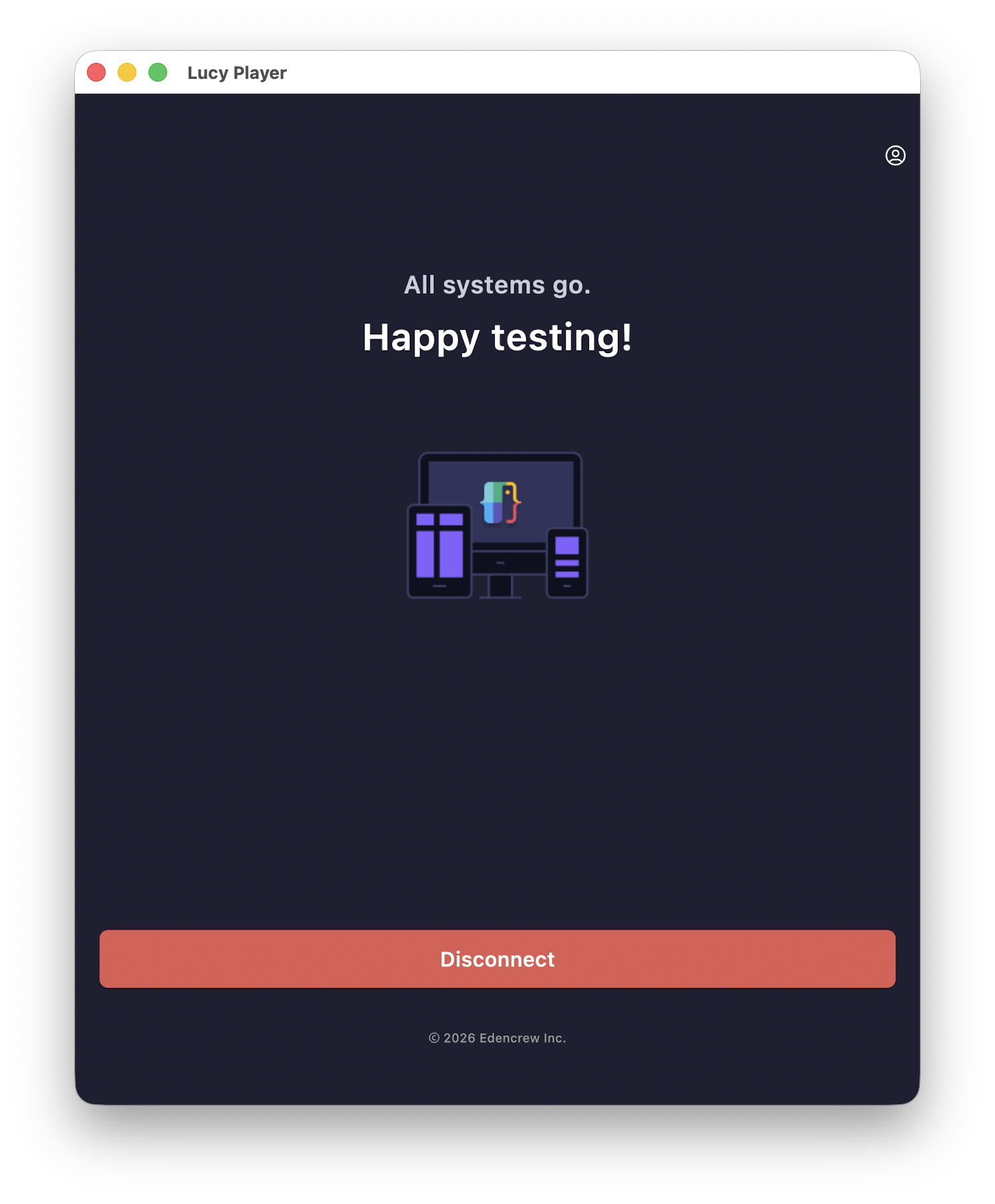
Once you see this screen, LucyPlayer setup is complete. Next, clone the tutorial project in LucyStudio.
Step 5. Clone the Tutorial Project in LucyStudio
Launch LucyStudio, sign in, then click Open Project in the top menu. In the popup, find Tutorial 01 in the Tutorial section and click Clone. Once cloning finishes, the tutorial project is copied locally and the canvas opens.
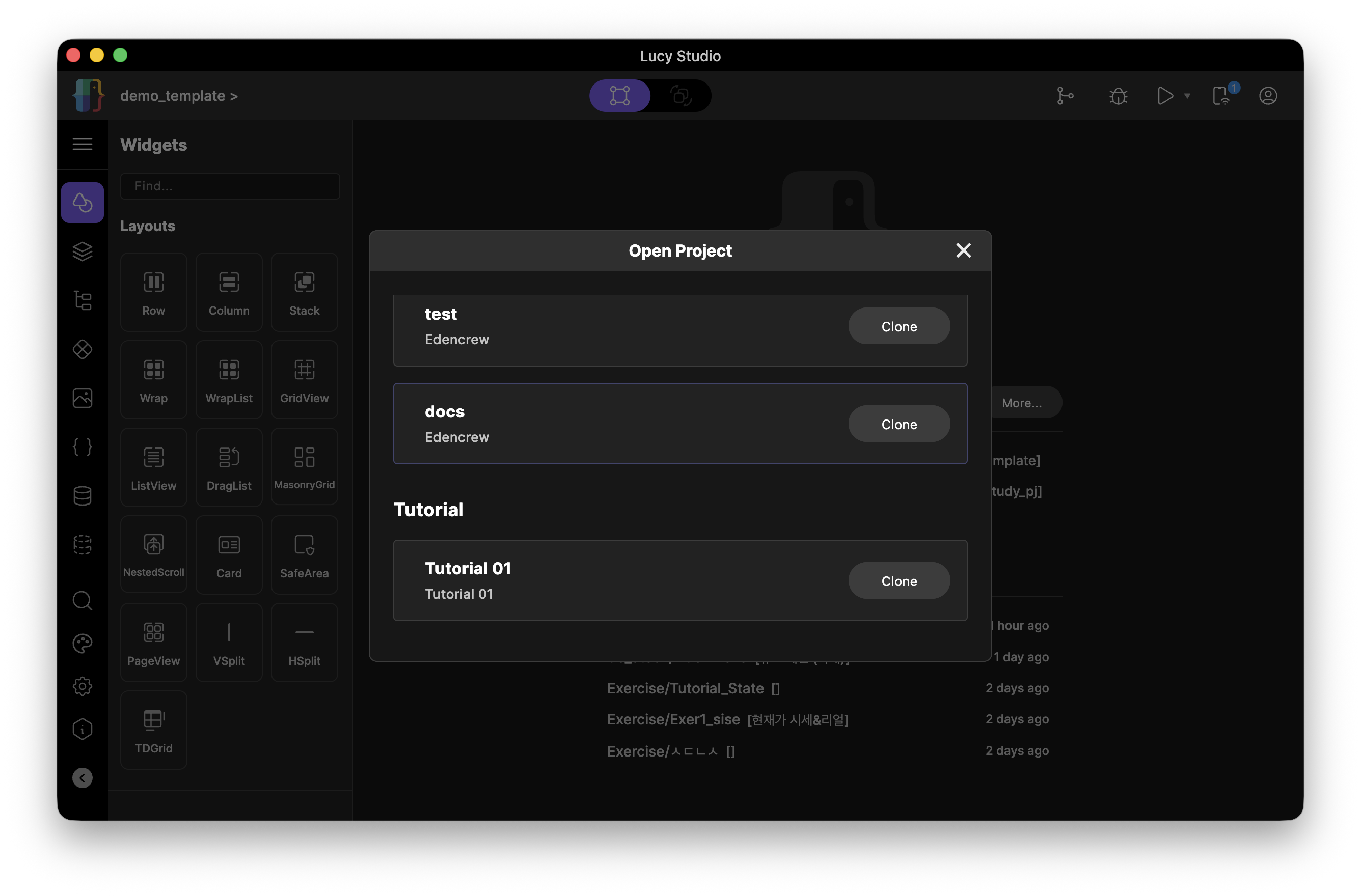
The Open Project popup shows both your workspace's (Edencrew) project list and the Tutorial project list for learning. If you're just starting out, we recommend cloning Tutorial 01.
Step 6. Confirm the Clone
Once cloning finishes, the project's pages (for example, Sample11 and Sample12) appear in the Pages list on the left. Open one of them, and the canvas shows the corresponding screen (for example, "Hello World!!").
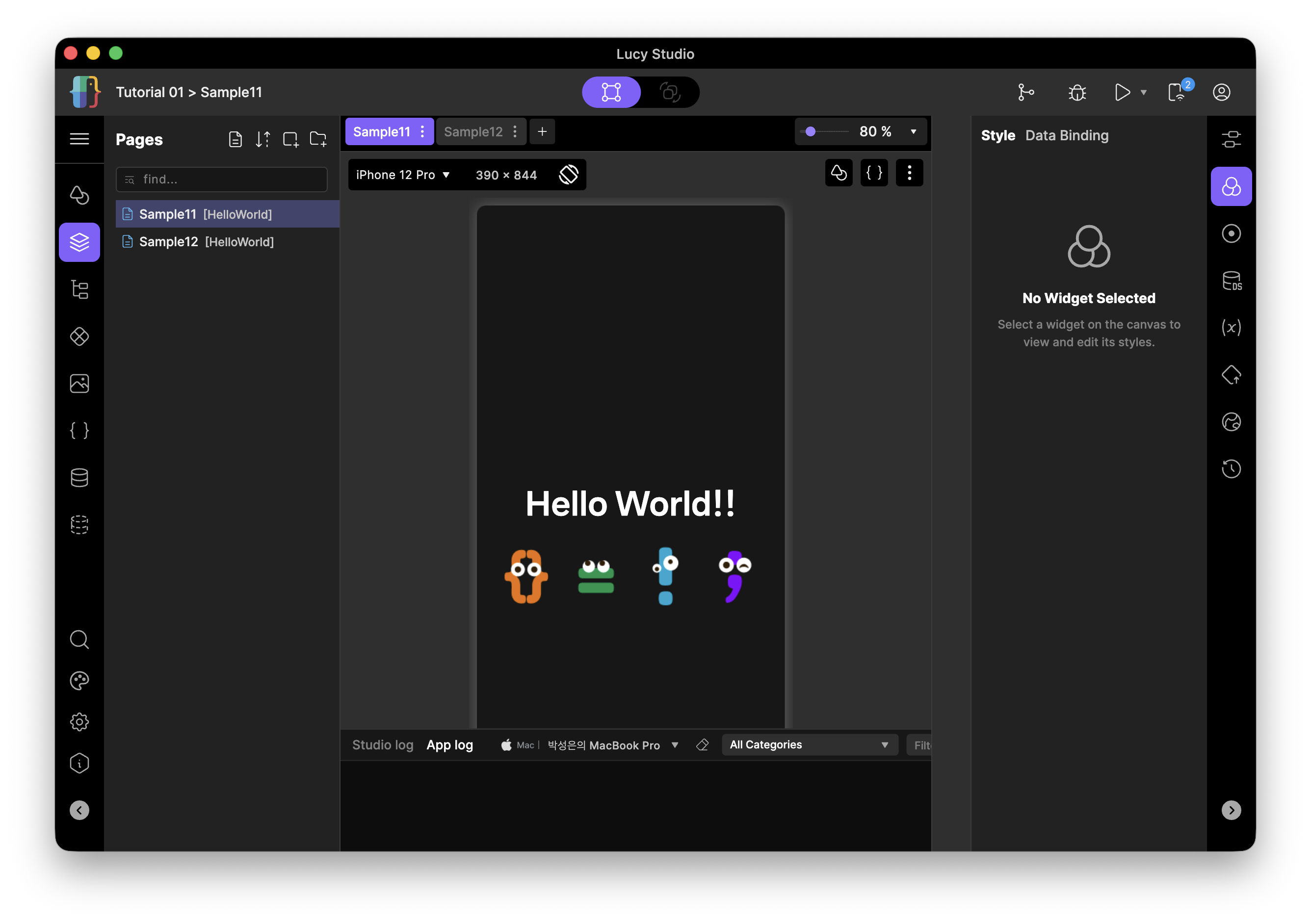
Once you have a page open like this, cloning the tutorial project and initial setup are both complete.
Notes
- Your LucyPlayer sign-in account is the same account you use for LucyStudio and Lucy Team Cloud.
- The Tutorial project is a sample project for learning, managed separately from your production projects.
- If you run into an error while signing in or cloning, contact your administrator or the appropriate contact person.