Join Lucy Team Cloud
What Is Lucy Team Cloud?
Lucy Team Cloud is a web dashboard you access from your browser. It handles sign-in, your project list, team (organization) management, and real-time notifications. This document walks new LucyStudio users through the entire process, from creating an account to signing in. You create your account through a web browser, and once that's done, you can use the LucyStudio desktop app together with Lucy Team Cloud.
Sign-Up Process
Step 1. Start Signing Up
There are two ways to start signing up.
-
From the LucyStudio app — click the [Sign up] link at the bottom of the sign-in screen
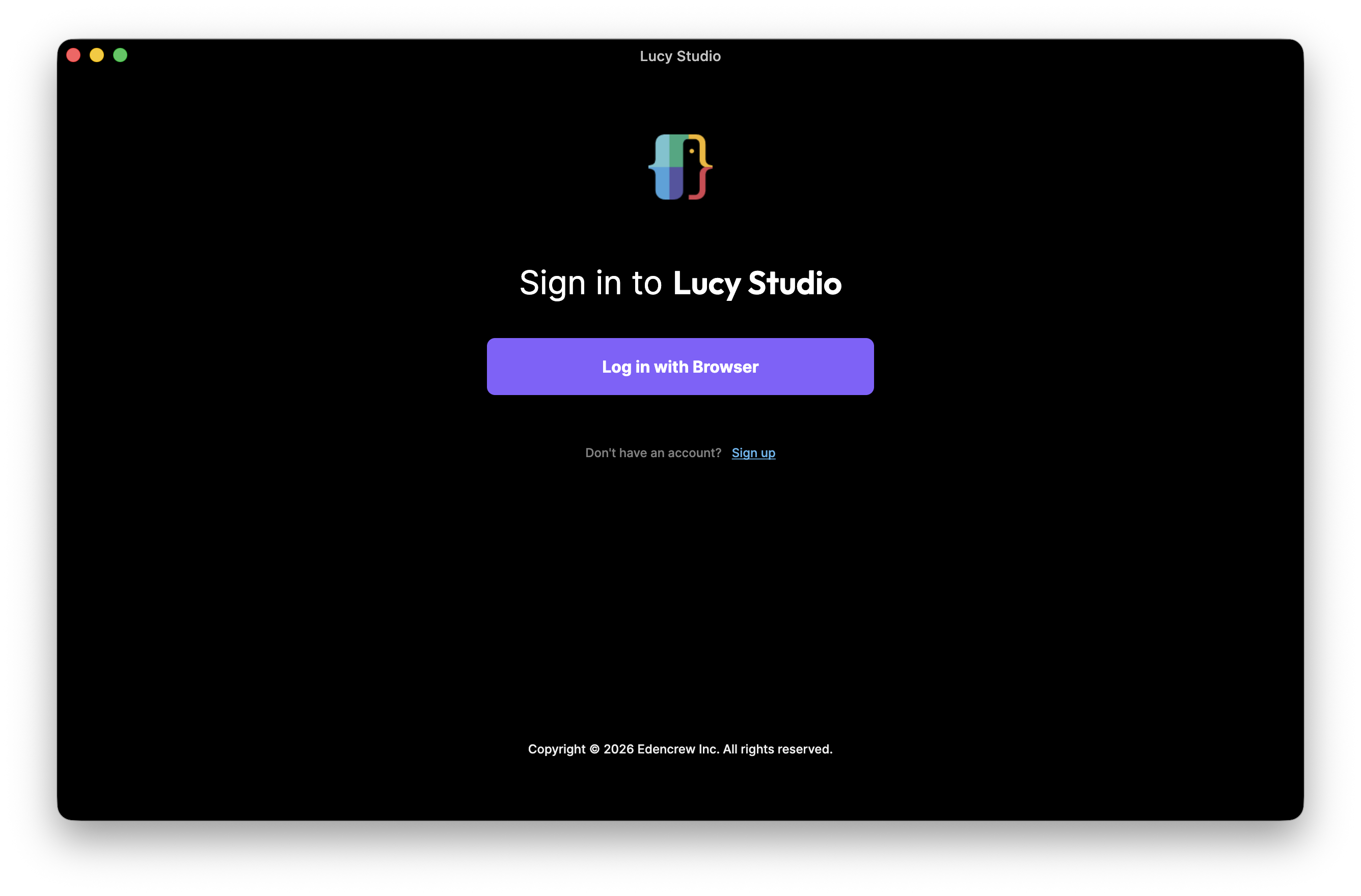
-
Directly from your browser — go to auth.edencrew.io
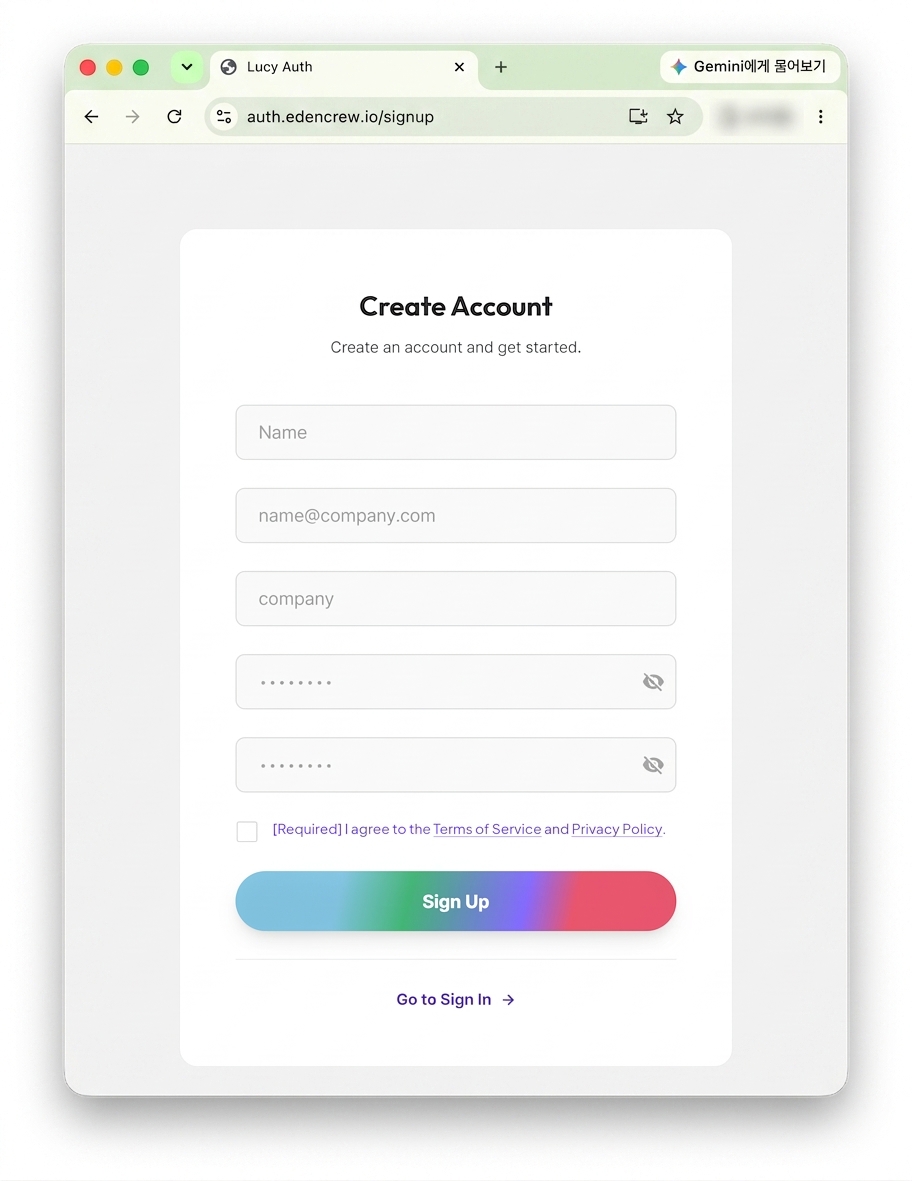
Step 2. Enter Your Account Information (Create Account)
On the Create Account page that opens in your browser, enter the following information:
- Name: Your name
- Email: Your email address, in the format name@company.com
- Company: Your company name
- Password / Confirm Password: Your password and its confirmation
After filling in all the fields, check [I agree to the Terms of Service and Privacy Policy] and click [Sign Up].
Step 3. Confirm Your Sign-Up
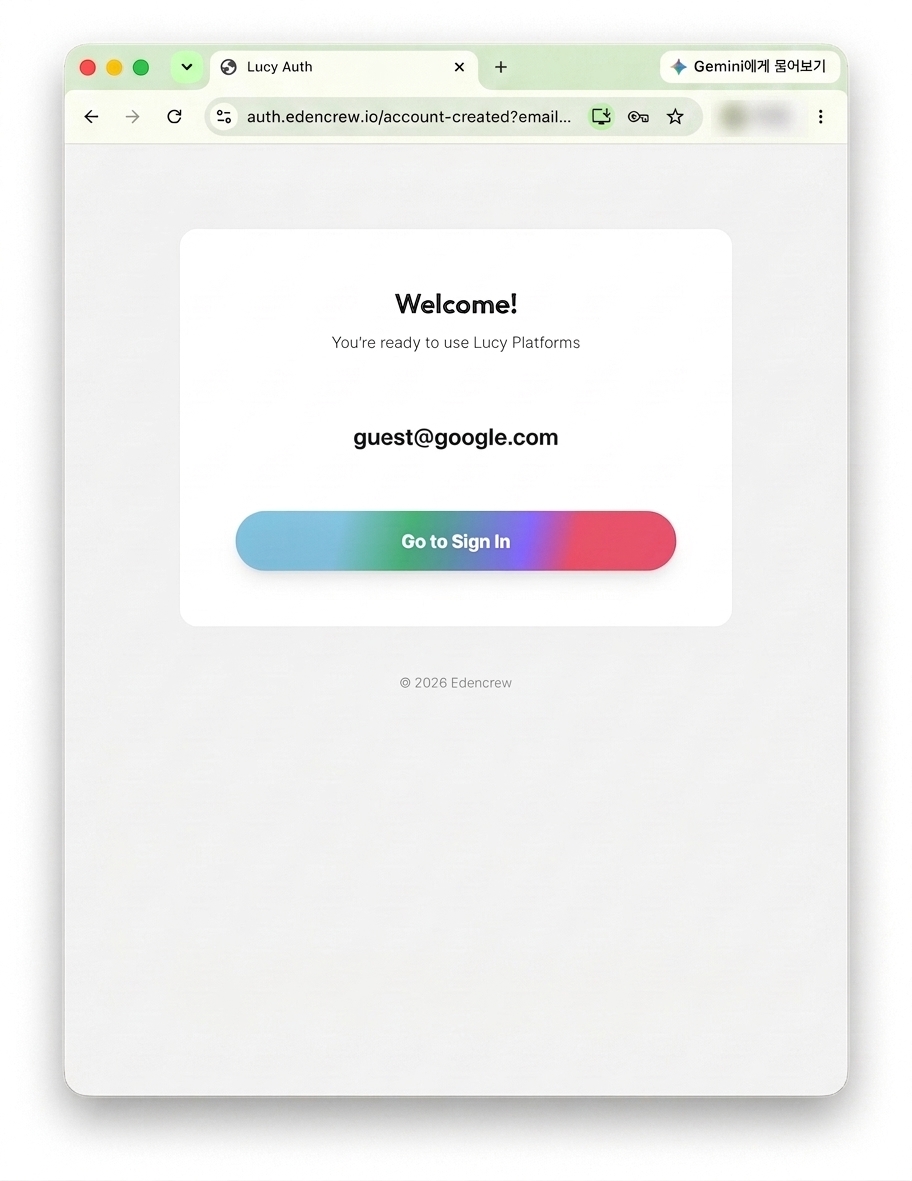
Once your sign-up is complete, you'll see the message "Welcome! You're ready to use Lucy Platforms" along with the email address you signed up with. Click [Go to Sign In] to go to the sign-in screen.
Step 4. Sign In and Agree to the Terms
When you sign in with your new account, you'll see the "Sign In as [your email address]" screen. The first time you sign in, an [Agreement Required] popup appears — check that you agree to the Terms of Service and Privacy Policy, then click [Agree and Continue] to proceed.
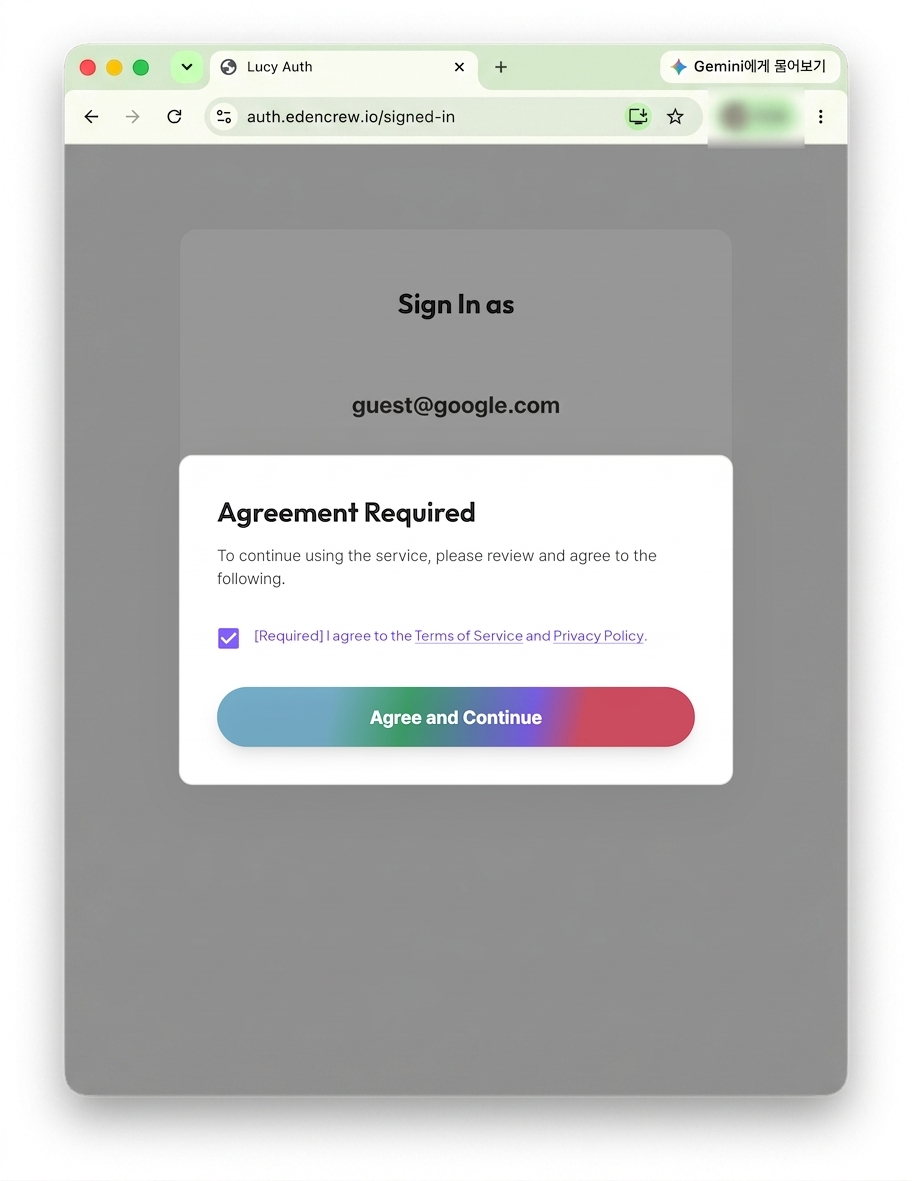
Once you reach this point, account creation and sign-in are both complete. Click [Open Teamcloud] on the "Sign In as [your email address]" screen to go to the Lucy Team Cloud dashboard. To learn how to create and open projects from the dashboard, visit 4. Manage Projects in Lucy Team Cloud.
Notes
- The email and password you use to create your account work the same way in both the LucyStudio app and Lucy Team Cloud.
- The terms agreement screen appears the first time you sign in, or whenever the terms are updated.
- If you run into any sign-in issues, contact your administrator or the appropriate contact person.