6. Import Designs from Figma
Figma & Figma Plugin Download & Install
1. Download Figma
To import text styles or screens from a Figma design, you first need the Figma app (or the web version).
- Official Figma download page: https://www.figma.com/downloads/
- Supported environments: the Windows or macOS desktop app, or a web browser such as Chrome
2. How to Install
- Download the installer for your operating system from the link above.
- Run the installer and follow the prompts to finish installing.
- Once it's installed, open Figma and log in with your account. (If you don't have one yet, sign up first.)
If you already have Figma installed, skip this step and go straight to 3. Install the Figma to LucyStudio Plugin below.
3. Install the Figma to LucyStudio Plugin
To bring text styles into Lucy Studio, you need a plugin that exports them from Figma as JSON.
- Plugin download: www.figma.com
- Download the plugin from the link above.
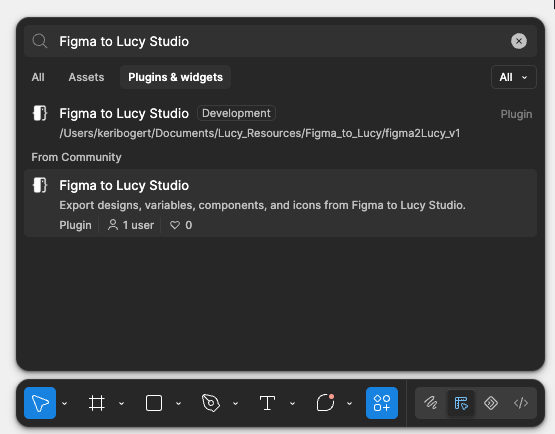
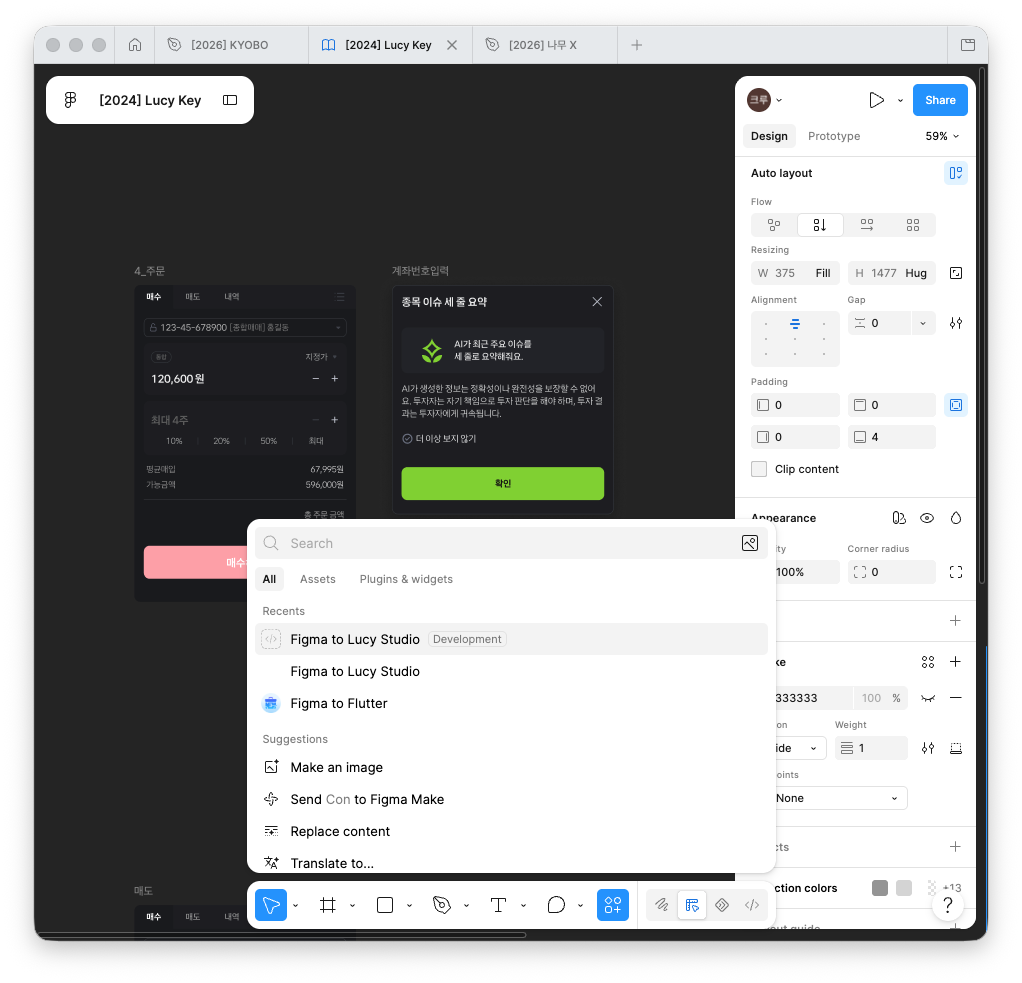
- Click the Action button in Figma's bottom menu bar.
- Select Plugins and widgets.
- Search for Figma to Lucy Studio.
- Select Figma to Lucy Studio and click Run.
Importing a Screen from Figma
Import a whole frame you designed in Figma and turn it into a new page in Lucy Studio.
STEP 1. Copy a Screen in Figma
-
Run the "Figma to Lucy Studio" plugin.
-
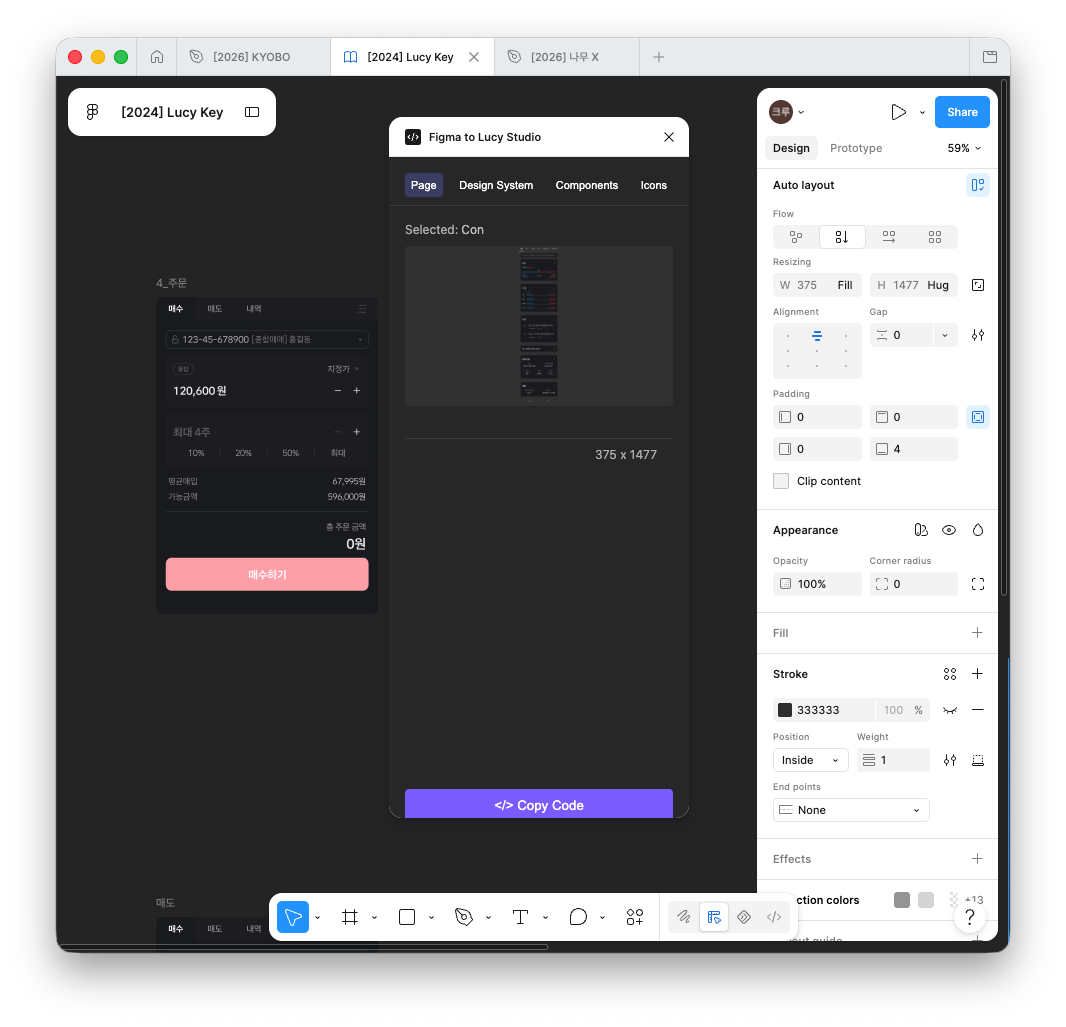
With the plugin window open, click the screen (frame) you want to import to select it, then click [</> Copy Code] to copy that screen as JSON.
STEP 2. Paste the Copied Screen into Lucy Studio
-
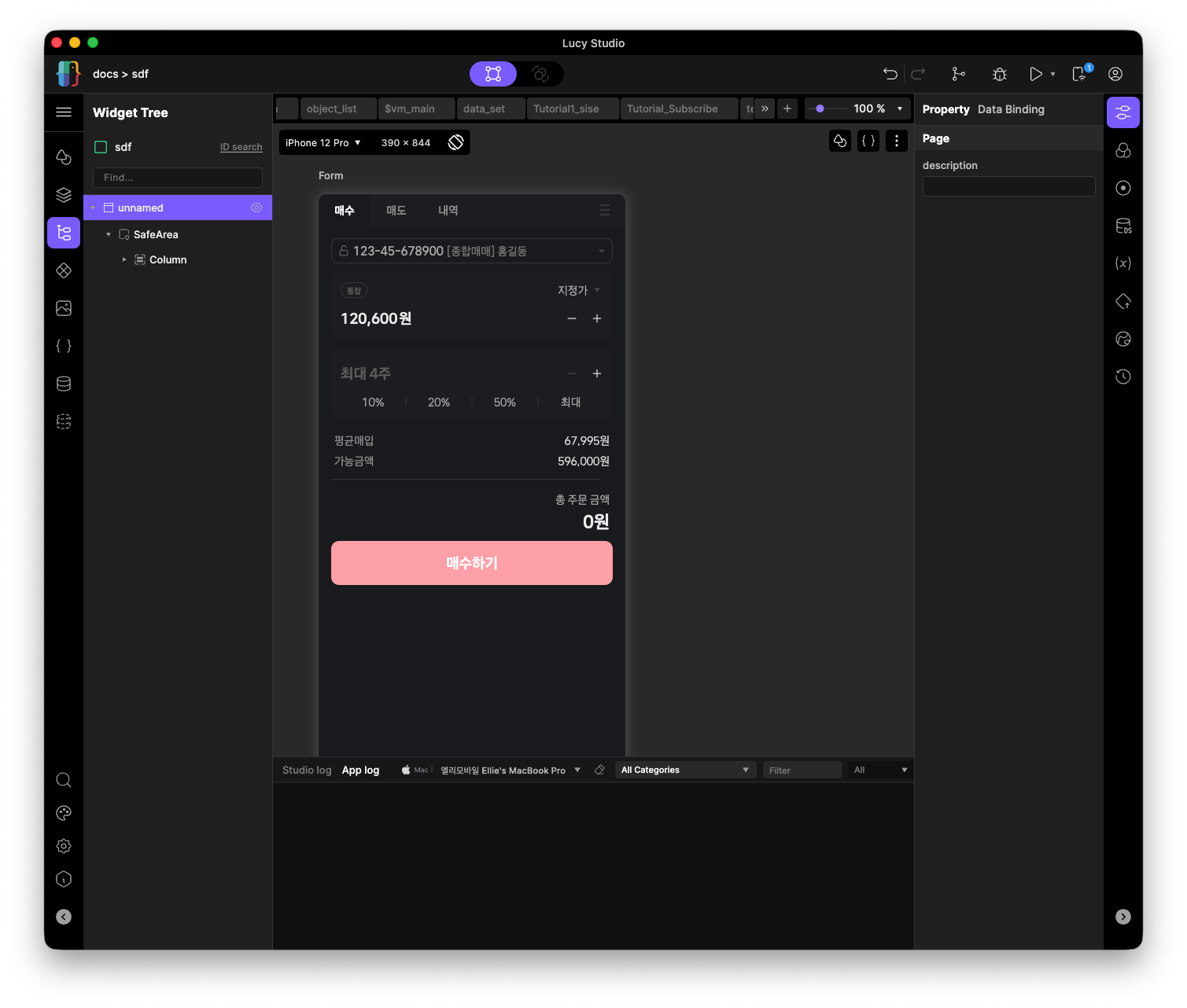
Open a new page in Lucy Studio, or create one.
-
Click the canvas and paste (macOS: Cmd+V / Windows: Ctrl+V). The screen you copied is added as widgets, exactly as it was.
STEP 3. What to Check After Importing
Color
Colors used in an imported screen link automatically to the color theme registered in your project.
A color links automatically only if it's already registered in the project's color theme. Colors that aren't registered yet come in as fixed color values and stay unlinked from the theme, so import your color theme before you import a screen.
Text Style
Text styles aren't included when you import a screen. Import them separately with [Import Figma Text Styles] in the Text Style editor.
Layout
Figma's Auto Layout direction (horizontal or vertical) becomes a Row or Column, and Wrap is applied when automatic wrapping is on. If a frame contains elements placed at absolute positions (Ignore Auto Layout), the rest keep their original Row/Column flow. Only the absolute elements are layered on top. If spacing or alignment looks different from the original after importing, check the layout properties again and adjust them.
Transparent background and group frames nested several layers deep are cleaned up automatically during import, so Figma's layer structure and the widget tree built in Lucy Studio may not match exactly.
Troubleshooting
- Nothing happens after you paste → Check that you copied the value in the correct format in Figma, then try again from STEP 1.
- Spacing or alignment differs from the original → Check the Auto Layout and absolute position settings.
- Colors came in as fixed values → Check that the color is registered in your color theme first.