10. Logic & Scripting
Understand the Basic Structure
- Scripts are plain JavaScript (ES6+) → all standard language features work as expected:
- Conditionals (if/else, switch)
- Loops (for, while)
- Ternary Operator
- Arrays & Objects
- JSON.parse, JSON.stringify
- Standard string and math operations
- You manage the lifecycle of a page through the lifecycle events. The global objects let you manage data, navigation, and animations. The widget objects let you manipulate a widget's properties for fine-tuned control over its appearance, and change that appearance or behavior based on user interaction with other widgets. You can use all of these together to give life to a page.
Lifecycle Events
- Screens run through callbacks that Lucy invokes automatically as a screen is created, used, and closed.
| Function | Timing and Role |
|---|---|
| onStart(arg) | Called first when the screen starts. Initialize data and set up event bindings here. |
| onClose() | Called when the screen is closing. Release resources and run cleanup. |
| onReceiveDone() | Called when data reception completes successfully. Update the UI with the received data. |
| onReceiveError() | Called when data reception fails. Handle errors such as network failures. |
For the full list of lifecycle events and a detailed description of each, see the LifeCycle Events section of 11. Script API Documentation.
Global Objects
- A global object is a ready-made object by Lucy Studio. It requires no import or manual setup, and is shared by the whole app and always available.
| Global Object | What it controls |
|---|---|
| $app | App-wide actions: navigation, dialogs, stored data, theme, device info |
| $form | The current screen/form: variables, messaging, navigating |
| $vm | Data: reading/writing data sources, requesting and subscribing to data |
| $http | Network requests to external APIs (get, post, put, etc..) |
| $log | Writing log messages (d, i, w, e) for debugging |
| $mqtt | Real-time messaging (connect, subscribe, publish) |
| $act | Running actions or state transitions registered in the ‘animation mode’ tab |
$log.d("Button was tapped!"); // write a debug log

$app.openPage("dashboard");   // navigate to the dashboard page

$http.get("https://api.example.com/user", function(res) {
	$log.i(res);                // do something with the response
});
For the complete methods and properties of each global object ($app, $form, $vm, $act, $log, $http, $mqtt), see the Global Objects section of 11. Script API Documentation.
Widget Object Control
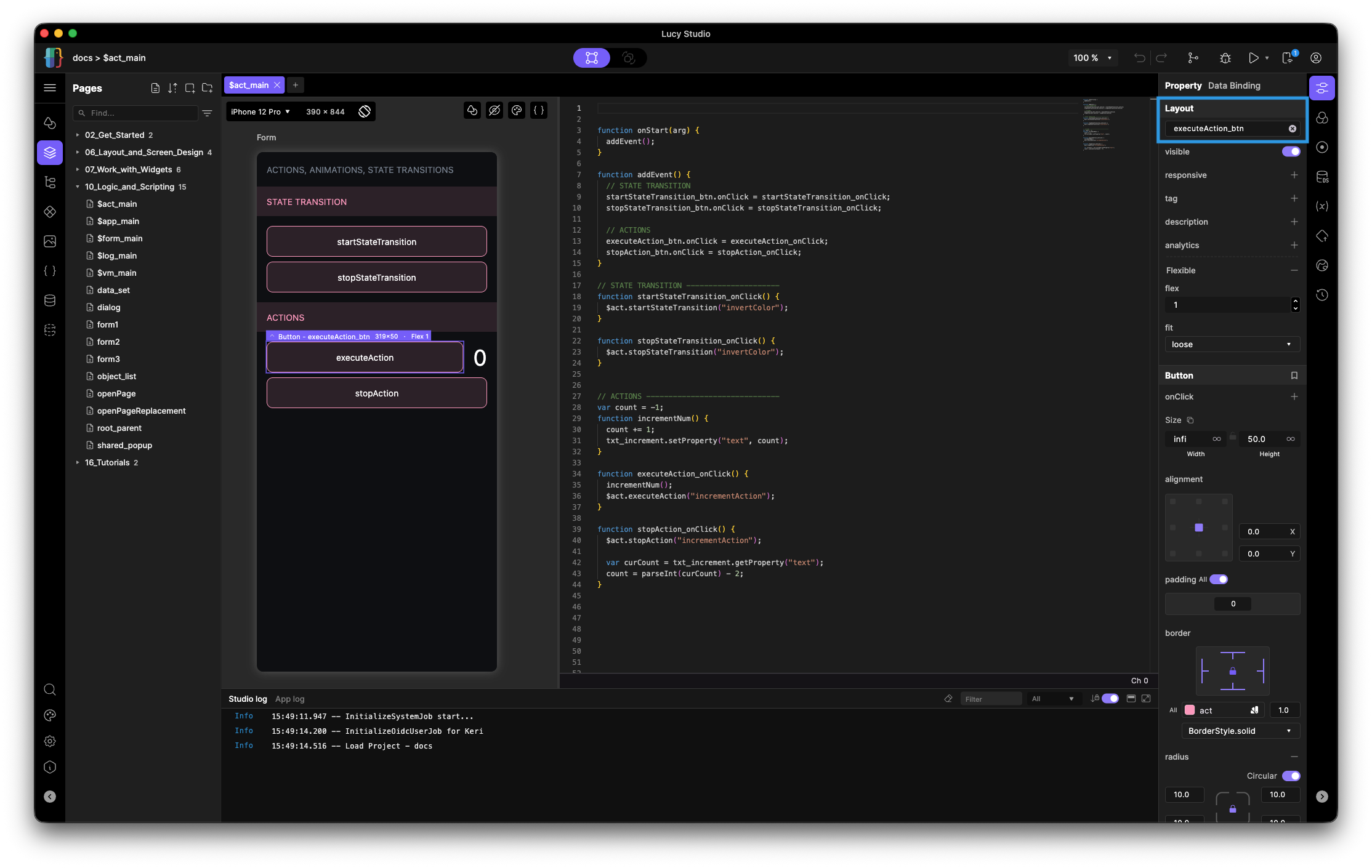
- Represents a specific widget that has been placed in the canvas area — a button, text, checkbox, and so on. This object only exists on the screen it belongs to and can only be reached by its id. Every widget object exposes its capabilities in three kinds of members: properties, methods, and events. Understanding these three is the key to scripting any widget — once you know the pattern, every widget works the same way.
For the full list of properties, methods, and events per widget, see the Widget section (Widget and Component Reference) of 11. Script API Documentation.
-
Properties: read and change the widget's state — you can set and get properties based on events from users (Ex: a button click changes a specified text's color).
-
Properties can be set and can be retrieved through various methods. For properties that don’t have shortcuts, simply use .setProperty and .getProperty. Pass in the property you want to set/get as a parameter.
// Set a specific property by passing the property name in as a parameter// Get a specific property by passing the property name in as a parametertextWidgetId.setProperty(propertyName, value);textWidgetId.getProperty(propertyName);textWidgetId.setProperty("text", "Hello World");var textProp = textWidgetId.getProperty("text");// Some common properties also have a shortcut method (see Methods// below). For example, .setText("Hello World") is a shortcut for// .setProperty("text", "Hello World"). Note: not every property// has a shortcut — use .setProperty / .getProperty when none exists. -
You can also set and get style properties through the script — properties like SizedBox, Padding, DecoratedBox, and so on. To get or set these from the script, the style property must already exist on the widget; otherwise the script has no effect.
// When setting a style property, the style has to already have been setwidgetId.setStyleProperty(styleName, styleProperty, value);widgetId.getStyleProperty(styleName, styleProperty);// When setting a color, the hex value can be used or the name of// a color registered in the color themeswidgetId.setStyleProperty("DecoratedBox", "decoration.color", "#FFFFFF");widgetId.getStyleProperty("DecoratedBox", "decoration.color");
-
-
Method: built-in widget behavior, primarily called with parentheses — tells the widget to do something. Arguments can be passed and some methods hand back a result that can be stored.
Widget Method Timer widgetId.start(); Calendar widgetId.goToToday(); ListView widgetId.insert(index); Text (property shortcut) widgetId.setText(”Hello World”); - Note: for the complete list of properties, methods, and events available on each widget, see the full Properties, Methods & Events reference: 11. Script API Documentation
-
Events: something you assign a function to
- An event fires when the user interacts with the widget. To respond, you assign a function to the event; Lucy runs that function each time the event happens. Some functions receive parameters, which you can then use for further handling.
- This is the primary way a page reacts to the user. For the full list of events, the arguments they pass, and worked binding examples, see the next subsection, Handle Events.
Handle Events (Taps, Input Changes, and More)
How binding works
- An event fires when the user interacts with a widget. To respond, you assign a function to the event; Lucy runs that function each time the event happens.
- Bindings should always be set up in the
onStartfunction. That way, the functions are immediately bound to the events upon page initialization. - Note, in cases like
onChanged,onSelected, oronSubmittedarguments can be passed to the handler (e.g.value,index,date).
Common widget events
- If a widget already has a set event, it will be visible in the properties panel when clicking on that widget. These kinds of events usually begin with ‘on’. If no event is visible, that means the widget does not have a set event — in that case, you can use the
onTapevent.
| Widget | Event | Arguments passed |
|---|---|---|
| Button | onClick | |
| Checkbox, TextField | onChanged | value |
| TextField | onSubmitted | value |
| ListView | onSelected | index |
| Text, Icon, Row, Column, etc… | onTap |
A fuller set, grouped by widget type:
| Group | Events |
|---|---|
| Buttons / selection | onClick, onSelected |
| Text input (TextField) | onChanged, onSubmitted, onEditingComplete, onTap, onFocusOut |
| Toggles / pickers | onChanged (Checkbox, Switch, DropDown, Slider, Radio) |
| Sliders | onChangeStart, onChangeEnd |
| Lists / scroll | onScrollEnd, onReorder, onOverflowChanged |
| Navigation / time | onPageChanged, onDateSelected, onExpired (Timer) |
Binding a handler
- There are two ways to attach a function to an event. You can define it inline, or declare it separately and reference it by name — both are equivalent.
// 1) Inline: define the handler directly in onStart()
function onStart() {
	widgetId.onClick = function() {
		$log.d("submit tapped");
	};

	widgetId.onChanged = function(value) {
		$log.d("field is now: " + value);
	}
}

// ================================================================
// 2) Separate: declare the function and reference it by name
function onStart() {
	widgetId.onClick = button_onClick;
	widgetId.onChanged = checkbox_onChanged;
}

function button_onClick() {
	$log.d("button clicked!");
}

function checkbox_onChanged(value) {
	$log.d("field is now " + value);
}
Use Conditions, Loops, and Utilities
Common Patterns (JavaScript Basics for Scripts)
If you're new to JavaScript, the snippets below show what the standard language features look like when used inside a handler. A confident coder can skip this — it's plain JavaScript, with no proprietary equivalent to look for.
Conditionals — do something only when a condition is met (e.g. read a checkbox, then show or hide another widget).
function checkbox_onChanged(value) {
	if(value === true) {
		detailsBox.setProperty("visible", true);
		detailsBox.visible = true; // visible property can also be set in this way
	} else {
		detailsBox.setProperty("visible", false);
		detailsBox.visible = false; // visible property can also be set in this way
	}
}
Ternary operator — a compact if/else that returns one of two values.
function checkbox_onChanged(value) {
// If checked, show "On"; otherwise show "Off"
	statusLabel.setText(value === true ? "On" : "Off");
}
Loops — repeat an action, e.g. add several rows to a list.
function onStart() {
	var fruits = ["Apple", "Banana", "Cherry"];
	for (var i = 0; i < fruits.length; i++) {
		$log.d("Item " + i + ": " + fruits[i]);
	}
}
Working with objects & JSON — parse a response, then read its fields.
function onStart() {
	var jsonText = '{ "name": "Jane", "age": 30 }';
	var user = JSON.parse(jsonText); // text -> object
	nameLabel.setText(user.name);    // "Jane"

	var backToText = JSON.stringify(user); // object -> text
	$log.d(backToText);
}
Using Shared Script
Creating a Shared Module
As your project grows, there may be cases where multiple screens need to use the same block of script (login, helper functions, etc…). Rather than copying and pasting the same block of code into each of the individual page’s script window, you can put it in a shareable script file. Importing the code from that file lets you access the functions declared in it across multiple screens.
- Use the Script tab to create a new
.jsfile (e.g.common.js). - It is saved in the project's script assets folder alongside your other scripts.
require('jsFileName')must be at the top of the file that is doing the importing, with the file name as a parameter.- There is no limit on the amount of files you can import.
- Declaring functions can be done like so:
const Util = {
	getToday : function() {
		let today = new Date();
		return today;
	},
	getTime : function() {
    let today = new Date();

    let hour = ("0" + today.getHours()).slice(-2);    // hour
    let min  = ("0" + today.getMinutes()).slice(-2);  // minute
    let sec  = ("0" + today.getSeconds()).slice(-2);  // second

    return hour+ "" +min+ "" +sec;
	 }
}
Import it — at the very top of a script, before any other code and call it where needed:
require('common.js');

function onStart() {
	button.onClick = setCurrentTime;
}

function setCurrentTime() {
	let time = Util.getTime(); // Util comes from common.js

	time_txt.setProperty("text", time);
}
Debug Your Script
Common Debugging Patterns
Confirming a function is being called:
The simplest check — add a log at the top of any function you suspect is not running:
function myButton_onClick() {
  $log.d("myButton_onClick fired");
  // rest of logic
}
Tracing a data flow:
Log before and after key operations to find where data changes or stops:
$log.d("before sort: " + $vm.getDSValue("myDS.body.items[0].title"));
$vm.sortString("myDS", "body.items.title", "ascending");
$log.d("after sort: " + $vm.getDSValue("myDS.body.items[0].title"));