4. Manage Projects in Lucy Team Cloud
What Is Lucy Team Cloud?
Lucy Team Cloud is a web dashboard you access from your browser. It handles sign-in, your project list, team (organization) management, and real-time notifications. This chapter covers how to create and manage projects in Team Cloud.
If you don't have an account yet, see Join Lucy Team Cloud first.
Access Team Cloud
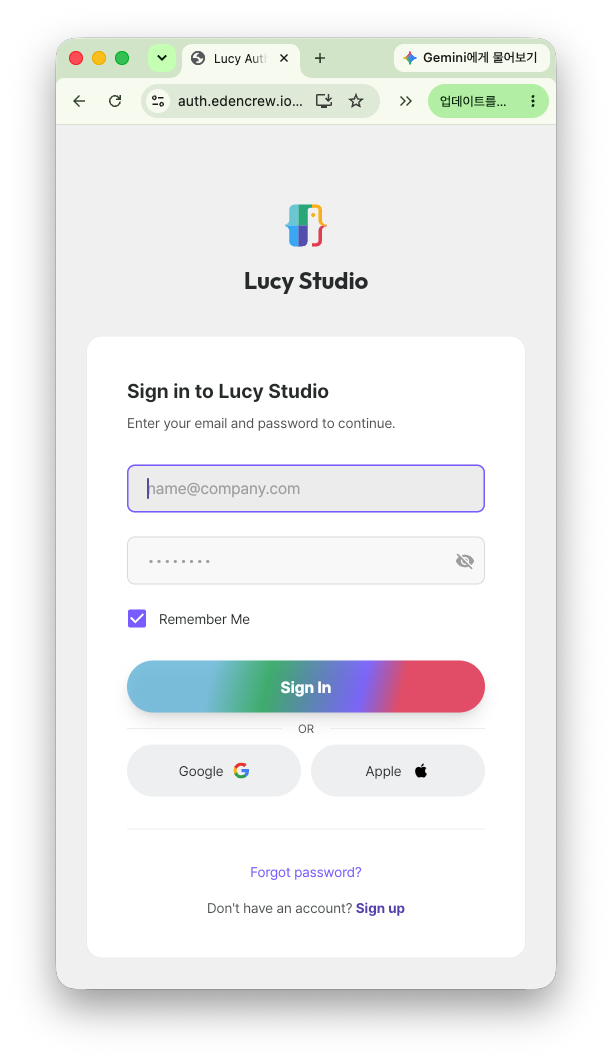
Once you've created your account, go to cloud.edencrew.io in your browser and sign in to reach the Lucy Team Cloud dashboard.
Explore the Dashboard
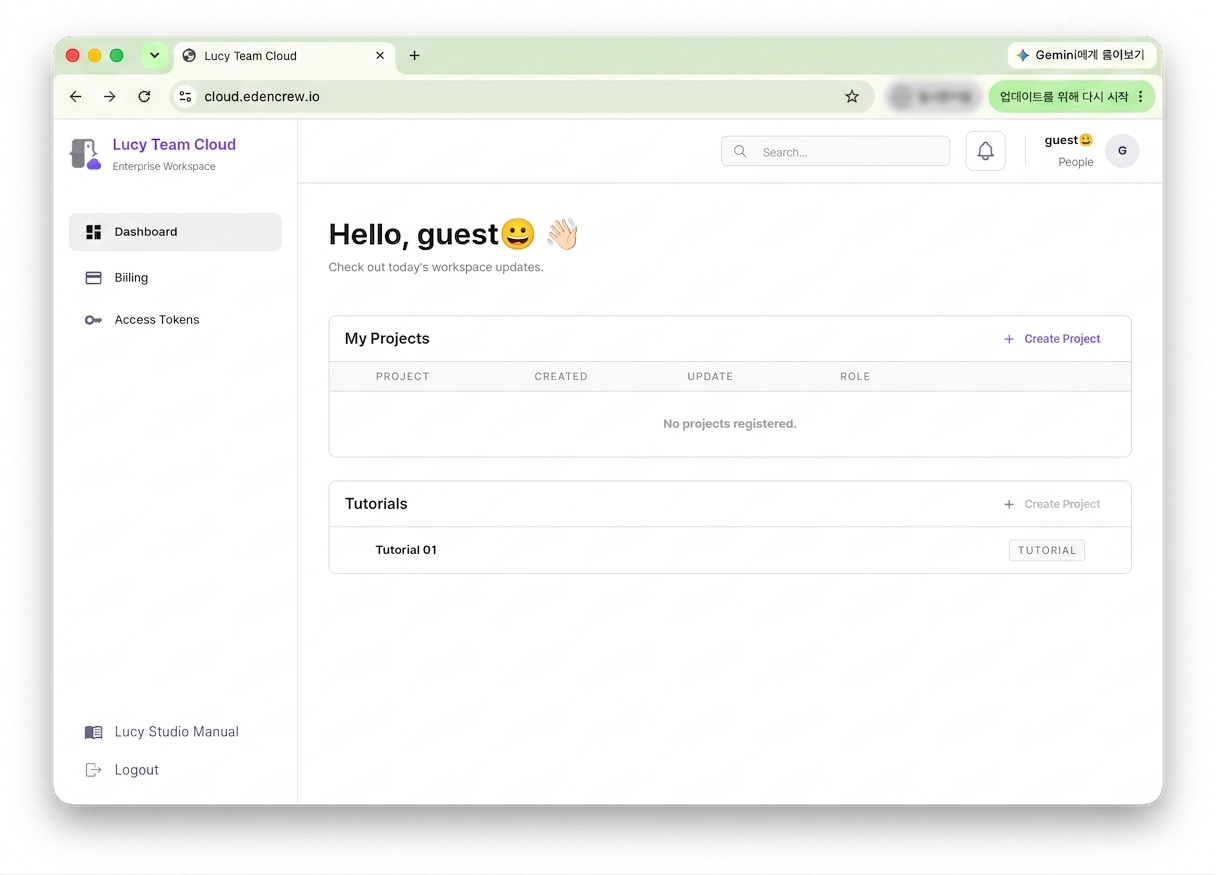
Once you're in Lucy Team Cloud, the dashboard shows a "Hello, [your name]" greeting along with your project list (My Projects).
Create a New Project
Locked on the Free plan; available on the Pro and Enterprise plans.
On the Dashboard screen in Lucy Team Cloud, click + Create Project at the top right of the My Projects panel to create a new project.
Project Settings
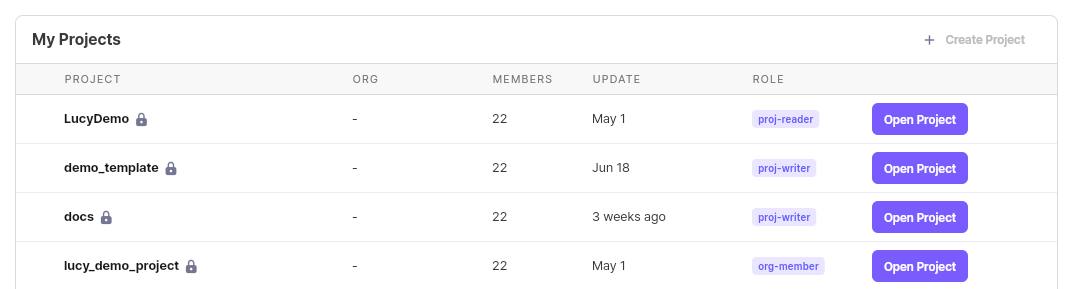
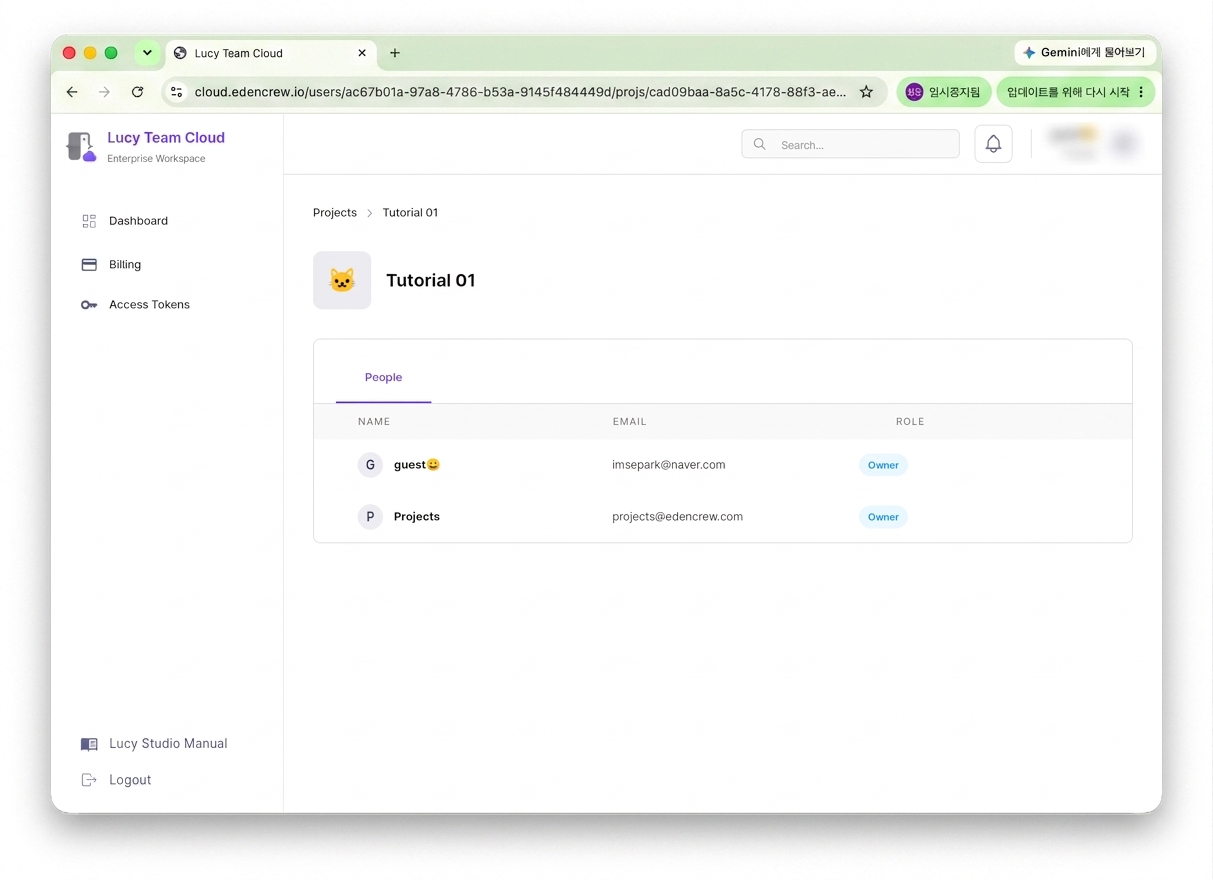
Change basic information for each project — its name, description, org, and more. Click a project's row in the My Projects table in Lucy Team Cloud to go to its detailed settings screen.
Open, Duplicate, and Delete Projects
Open
- Click Open Project on the project you want in Lucy Team Cloud's My Projects list.
- You can also open a local project directly from inside Lucy Studio via the top menu → Open Project (Local Repository).
Duplicate
- Choose Duplicate from a project's overflow menu (⋮) in the project list to create a new project with the same configuration.
Delete
- Choose Delete from the overflow menu (⋮) in the project list. Deleted projects can be difficult to recover, so proceed with caution.
Manage Permissions
The My Projects table in Lucy Team Cloud shows your role for each project in the ROLE column (for example, org-member, proj-writer). Project admins can assign permissions per member to distinguish read/write access.
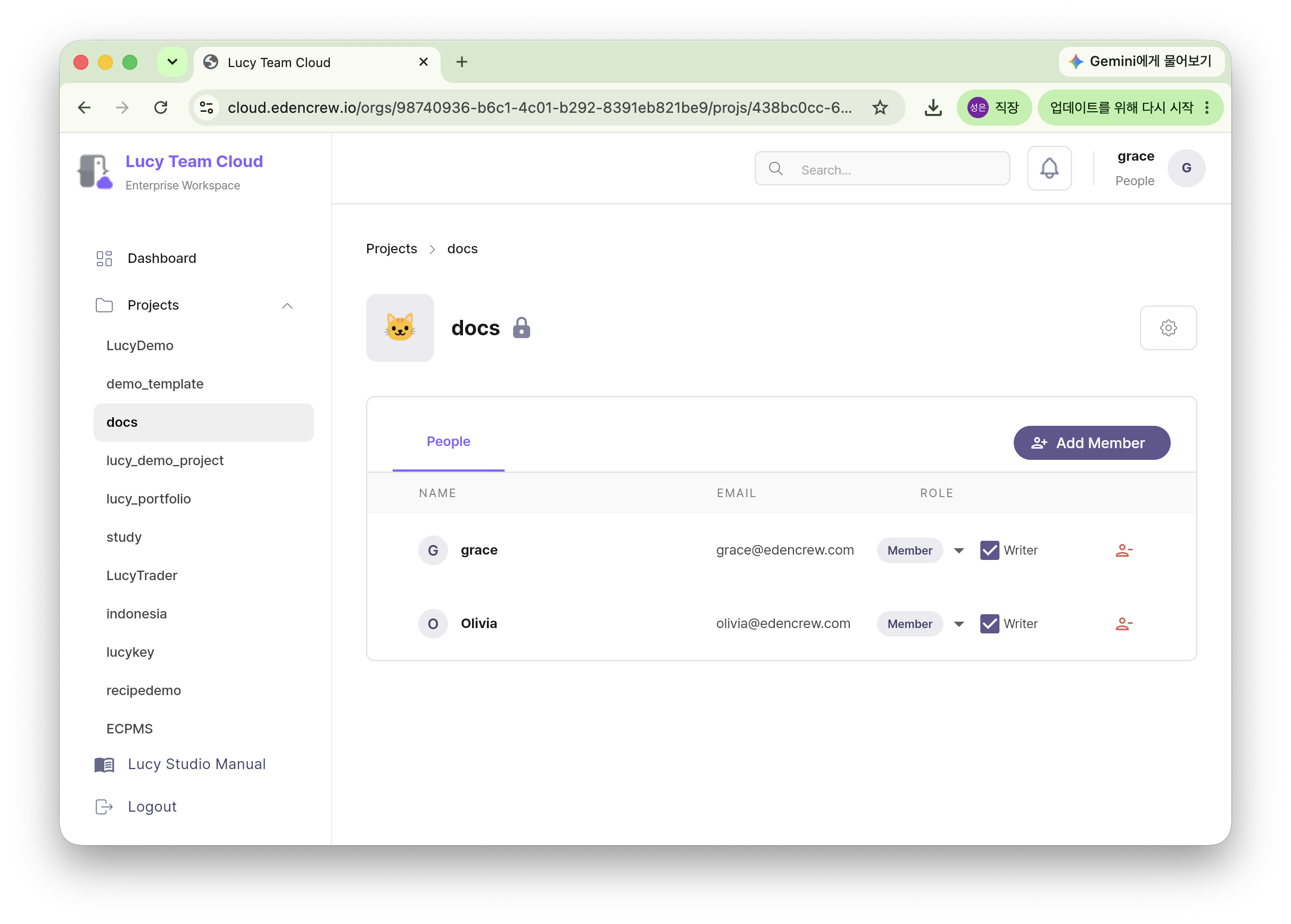
Join a Project in Lucy Studio
Here's how to join a project that already exists.
- Launch Lucy Studio and sign in
- Launch Lucy Studio locally.
- Sign in with your account.
- Choose a project
- Click the menu button at the top left to expand the full menu.
- Click Open Project to see the list of projects you can open.
- Open a local project: In the Local Repository section, select a project and click Open.
- Clone a remote project: In the Remote Repository section, select a project and click Clone — it's copied locally and the canvas opens.
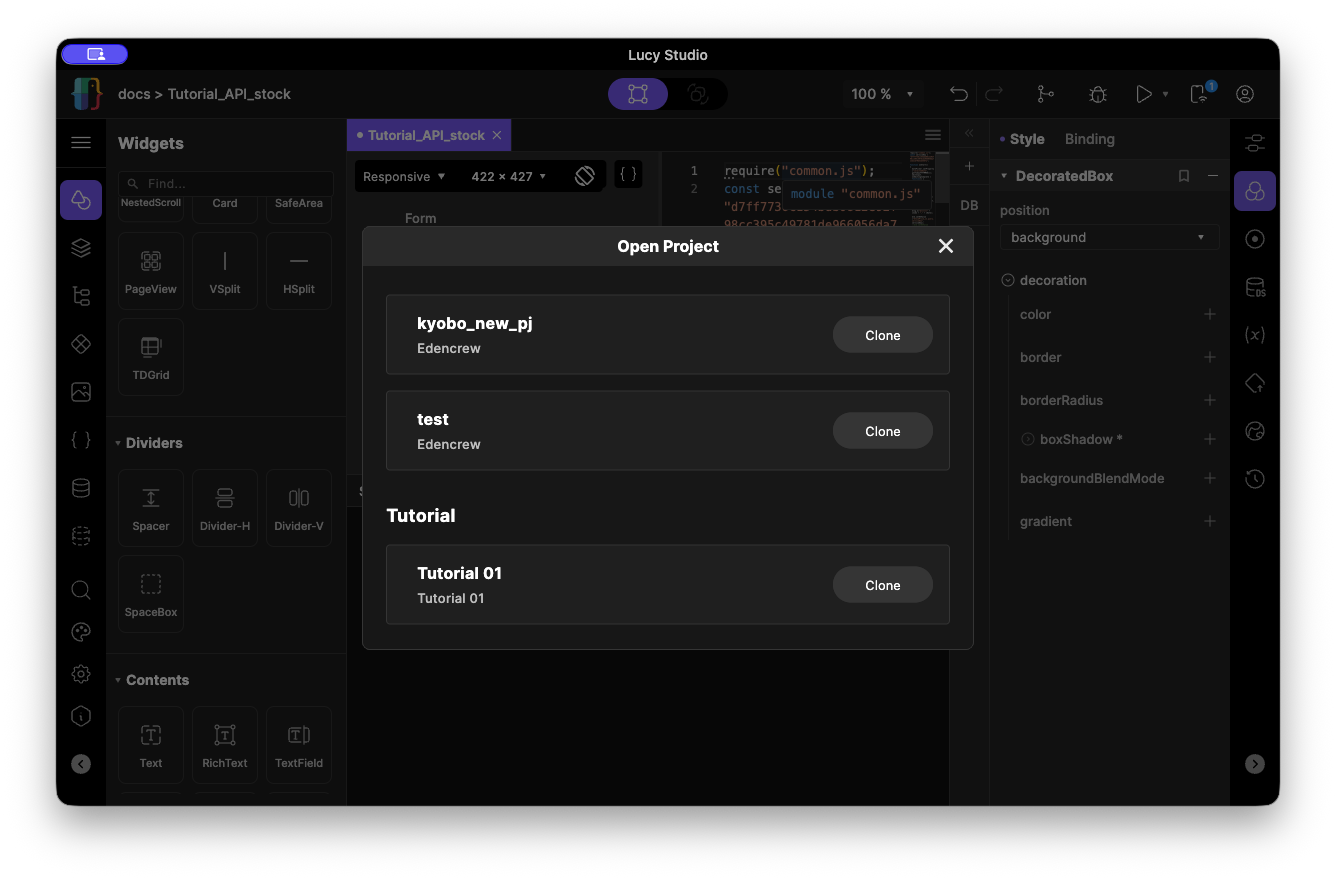
Once you reach this point, you're ready to start developing your app in Lucy Studio.