14. Tutorials and Hands-On Examples
Beginner tutorials
New to Lucy Studio? Start with the tutorial below. By building a single screen from start to finish, you'll learn the core flow — placing widgets, setting properties, and writing scripts — in 10 to 15 minutes.
Build an app with external APIs
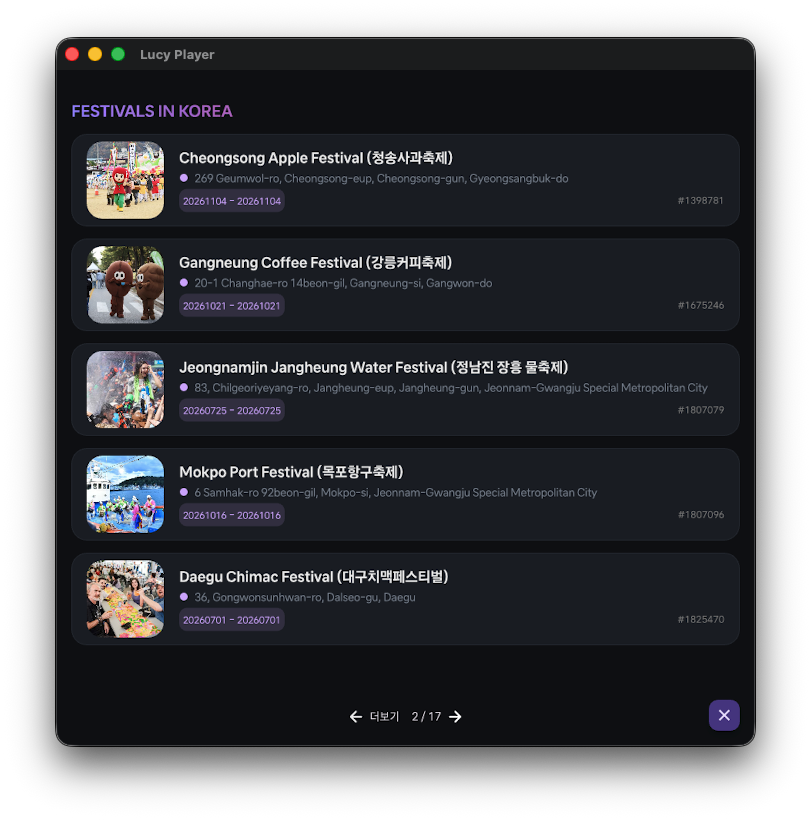
Public API example — Korea Festival
This list screen is built on the festival information public API from the Public Data Portal. A ListView shows each festival's photo, name (Korean and English), location, ContextID, and last update date, with pagination (1 / 14) at the bottom to load the next page.
To follow along, clone the Tutorial01 project in Lucy Studio, then open the .lfp file saved in the 16_Tutorials folder.
The script is set up so that clicking a festival row in the list opens a Side panel (End Drawer) on the right, showing the details.
function lsvPlace_onSelected(idx)
{
  $log.e("selected : " + idx);
  lsvPlace.current = idx;

  const filename = "16_Tutorials/Tutorial_API_SIDE";
  $form.openEndDrawer(filename, {data:txtContextID.text, width:300});

  showFlag = !showFlag;
}
lsvPlace_onSelected(idx) is the event function that runs when you select a row in the lsvPlace ListView. It stores the selected index in lsvPlace.current, then uses $form.openEndDrawer() to open the 16_Tutorials/Tutorial_API_SIDE screen as a Side panel on the right. It passes the selected row's txtContextID text value as the data parameter so the detail screen can use it directly (width sets the panel width, and showFlag is a toggle variable that tracks whether the panel is open or closed).
What is a public API? It's a REST API that governments, local authorities, and public agencies offer for free through portals such as the Public Data Portal (data.go.kr). Most require a service key (authentication key) — issued after you sign up and apply — to be included in the request before you can call it.
Calling an external API from Lucy Studio
From a screen (page) script, you can call a REST API directly through the $http global object. It provides get, post, put, patch, delete, head, options, and multipart methods, and every method calls its callback with three arguments: the status code, the response headers, and the response body. The response body arrives as a string, so parse a JSON response yourself with JSON.parse().
$http.get(
  "https://apis.data.go.kr/B551011/EngService2/searchFestival2" +
    "?serviceKey=YOUR_SERVICE_KEY&MobileOS=ETC&MobileApp=LucyStudio&_type=json" +
    "&numOfRows=10&pageNo=1",
  {},
  function (status, headers, body) {
    if (status !== 200) {
      $log.i("API Error! : " + status);
      return;
    }
    var items = JSON.parse(body).response.body.items.item;
    $log.i("Received item count : " + items.length);
    // See below for how to display items in the ListView
  }
);
$http requests are asynchronous. The screen may render before the response arrives, so always update widgets inside the callback function.
Display the array of items you receive by looping over it directly inside the $http callback and filling in the ListView. The script below assigns fields from the Korea Tourism Organization festival API response to the actual widget properties: it clears the existing list with lsvPlace.clear(), then loops through the items array, adding a row with lsvPlace.add() and pointing lsvPlace.current at that row before setting each widget property.
lsvPlace.clear();
    for (var i = 0; i < items.length; i++) {
      var item = items[i];
      if (!item) continue;

      lsvPlace.add();
      lsvPlace.current = i;

      txtTitle.text     = (item.title  || "");
      txtAddr.text      =  (item.addr1  || "");
      txtContentID.text = (item.contentid || "");
      imgFirst.setProperty("image.url", item.firstimage || "");
      txt_startDate.text = item.eventstartdate;
      txt_endDate.text = item.eventstartdate;
    }
If you call the same API repeatedly across several screens, or you want to save a request/response structure and reuse it, you can register it with the Studio's Provider feature instead of calling $http directly every time. The Financial and business app examples section below covers Providers and how to connect them to a screen.
Financial and business app examples
A Provider (data provider) is an external data source — a REST API, a socket, and so on — that you name and register in the Studio. A DataSet takes the data structure that Provider exchanges (the request/response schema) and turns it into a form you can bind repeatedly to screen widgets. You can reuse a single Provider across many DataSets and many screens.
The typical workflow looks like this:
- Register a Provider — create a data source by entering its name, call URL, HTTP method, and request/response schema. You can also register push sources, such as real-time quotes where the server keeps pushing values to you.
- Create a DataSet — build a new schema, or bring in an existing Provider's response schema as-is (Quick Create) to make a DataSet.
- Bind to widgets — drag a DataSet's fields onto screen widgets (text, tables, charts, and more) to connect them. Whenever the Provider receives new values, the widgets update automatically.
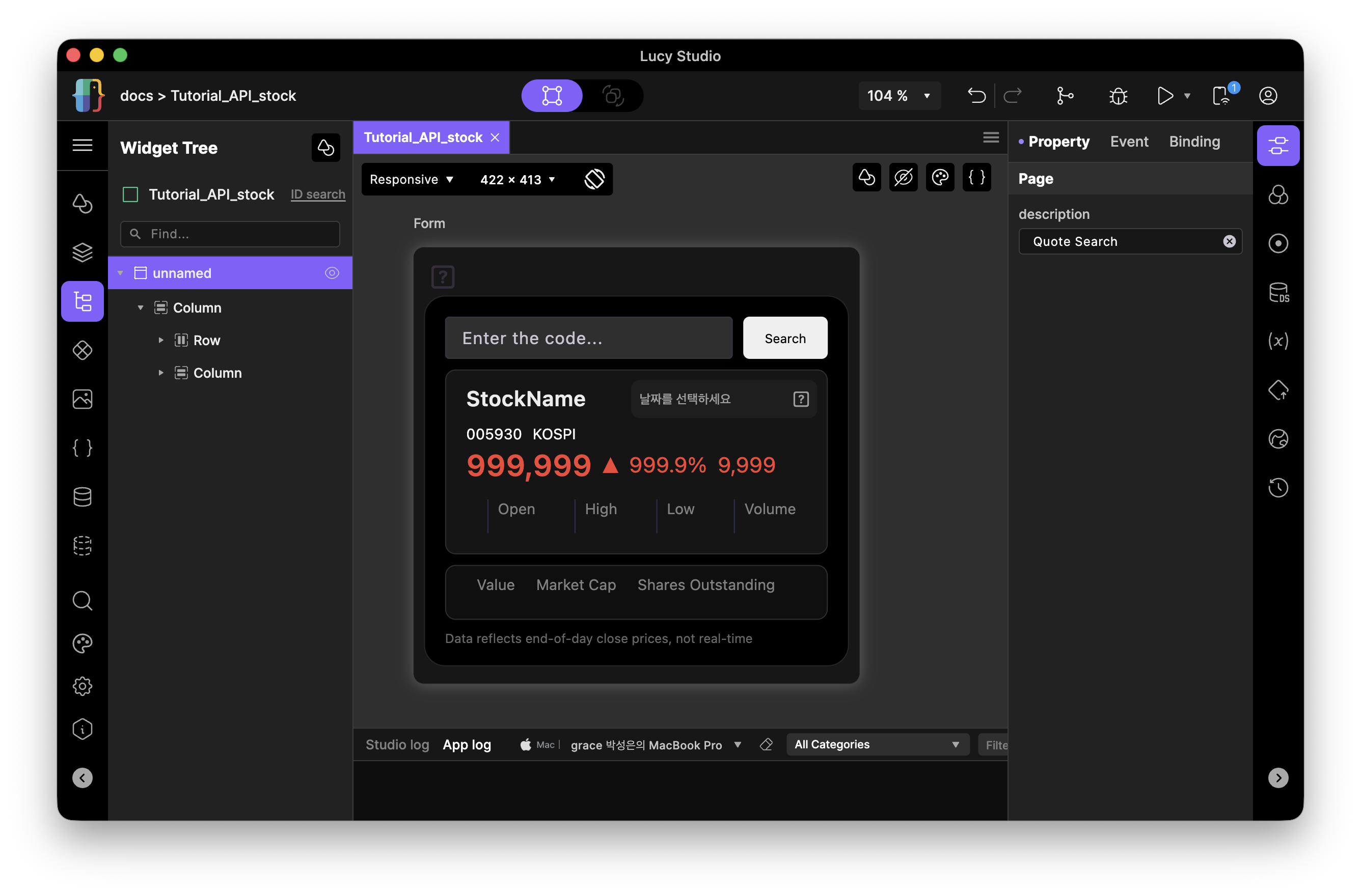
Real-time quote screen example (brokerage Provider integration)
This example connects a Provider from a brokerage to a DataSet and binds real-time quote data to the screen. As in the LiveStockPrices screen above, the values the Provider receives flow through the DataSet and update the screen in real time.
To follow along, clone the Tutorial01 project in Lucy Studio, then open the .lfp file saved in the 16_Tutorials folder.
This screen demonstrates the DataSet concept in LucyStudio. The DataSet/Provider features are not yet available in the current Closed Alpha build.